Extending Oracle Fusion Applications with Visual Builder (VB) is a powerful way to deliver custom, upgrade-safe experiences without touching the core product. The real challenge begins when these extensions need to move reliably from one environment to another (typically from a test or development instance to a production or parallel instance).
This blog walks through a practical, CI/CD-driven migration approach using Visual Builder Studio (VBCS). It covers everything from setting up environments and workspaces to building, publishing, and automatically deploying VB Extensions into another instance, ensuring consistency, security, and minimal manual effort throughout the lifecycle.
Prerequisites:
- Fusion Instance Access.
- Service user Credentials.
- Visual Builder access (TEST instance).
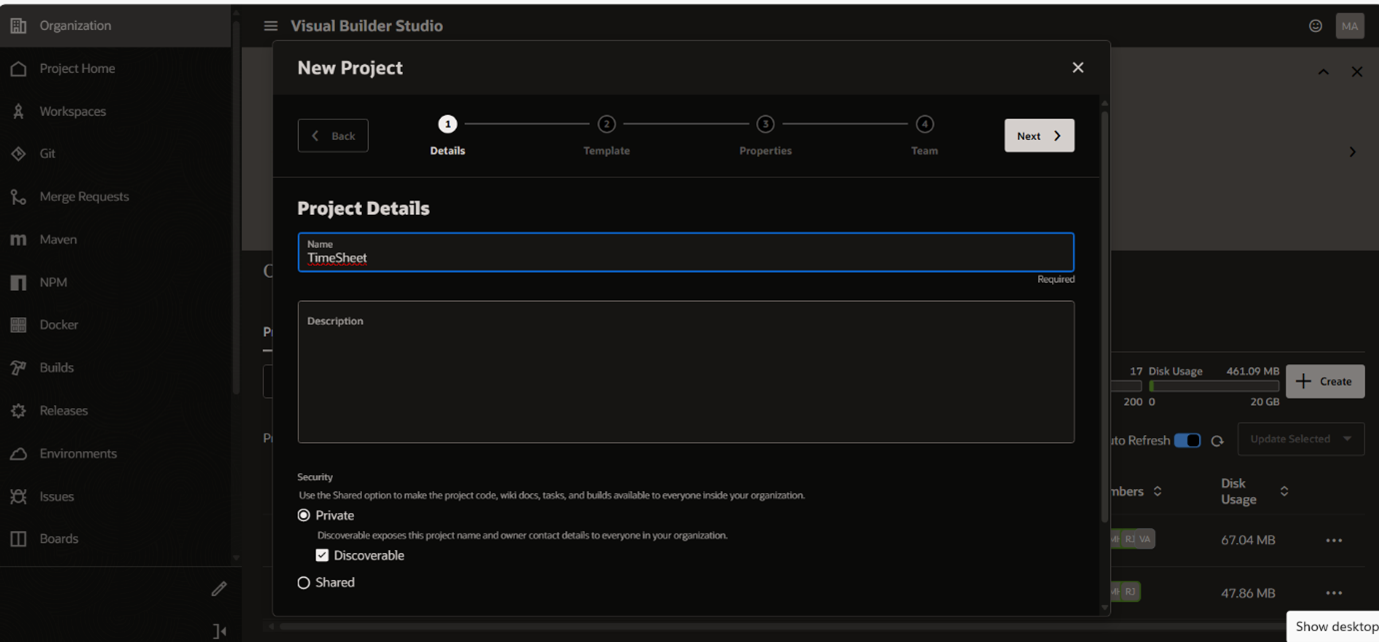
Step 1: Create Project in Visual Builder Studio.
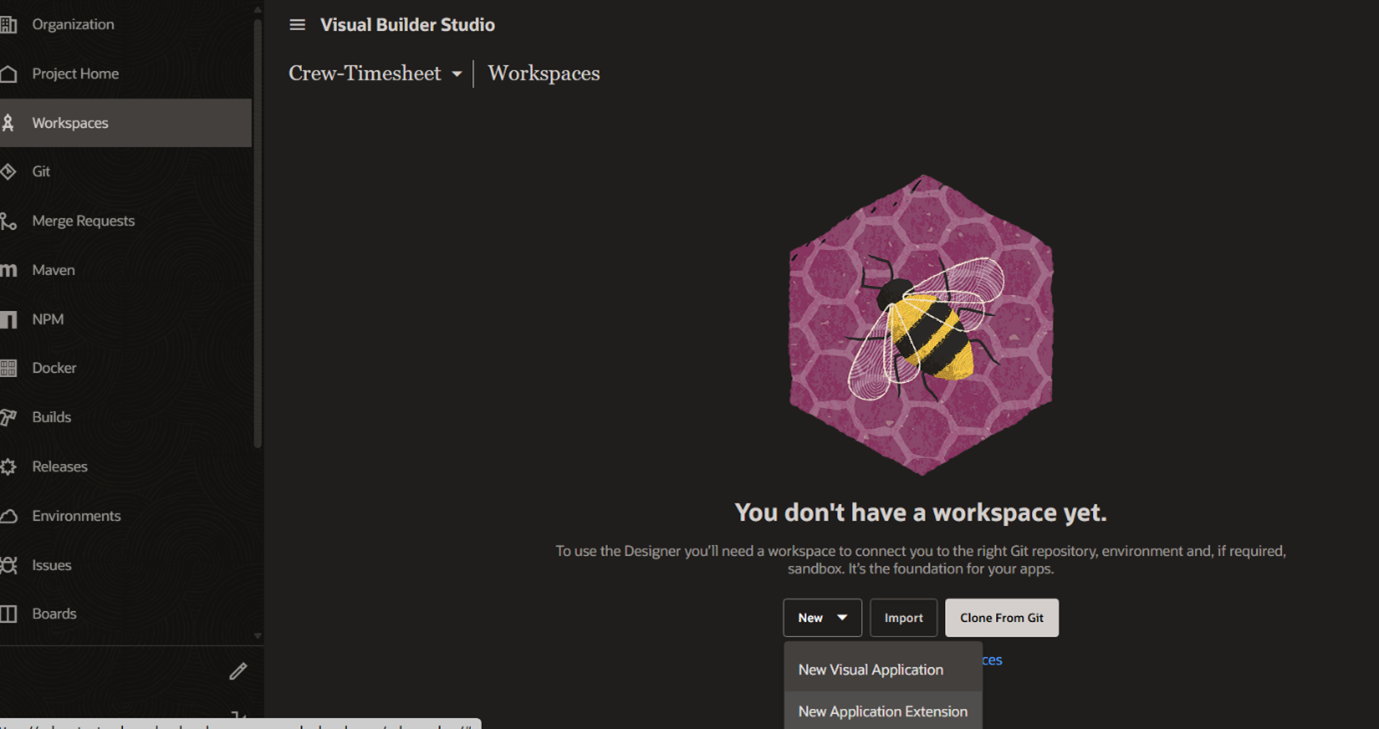
Step 2: Click the New button to create a workspace, then choose New Application Extension from the options (New Visual Application, New Application Extension).
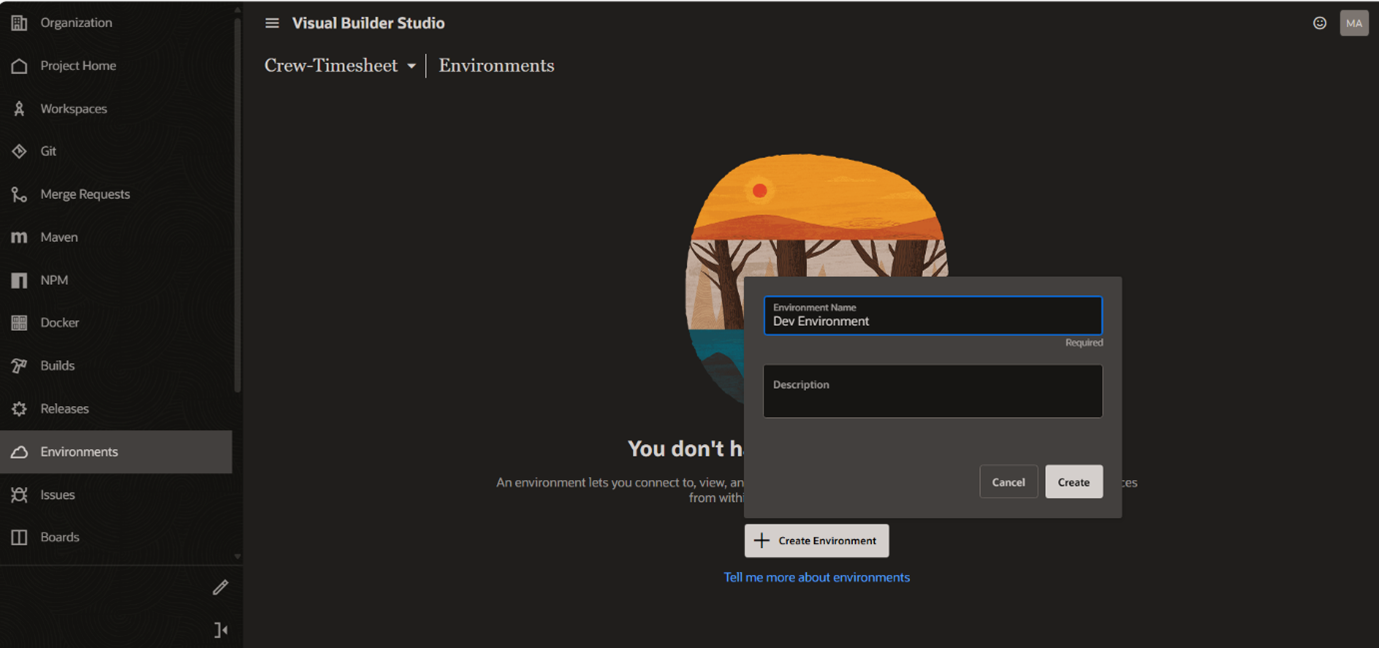
Step 3: Let’s Create Environment.
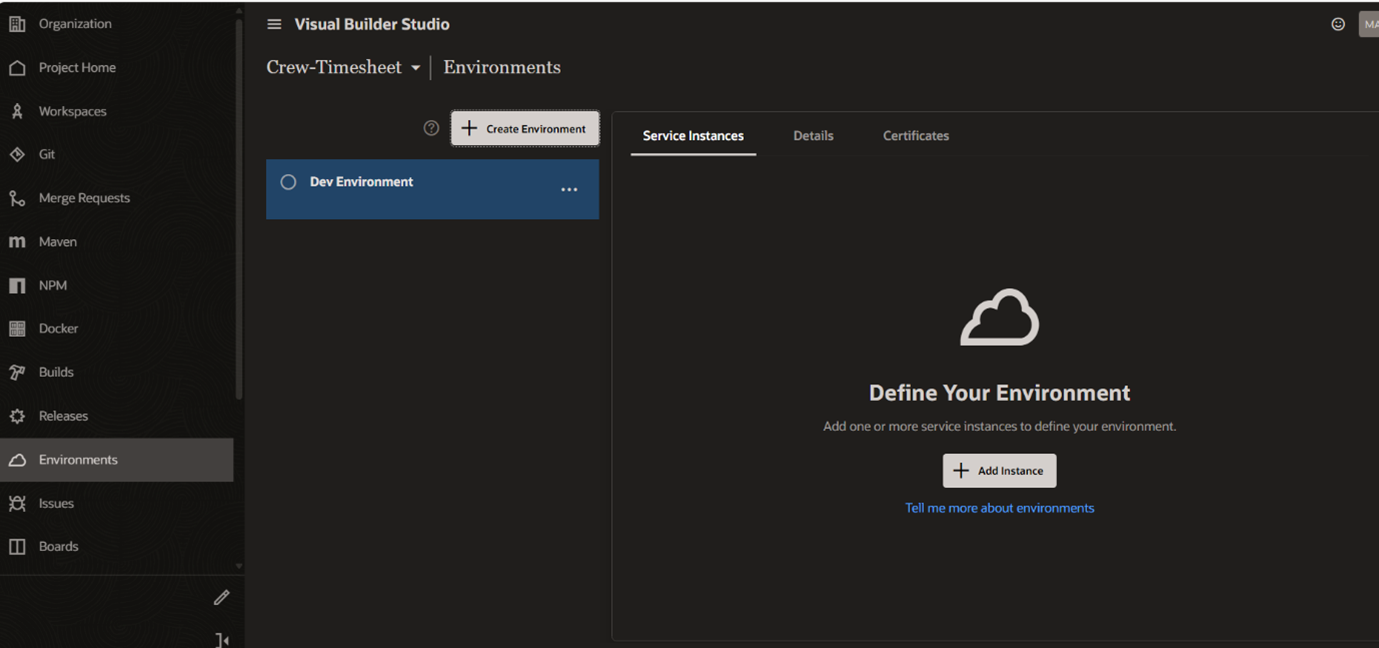
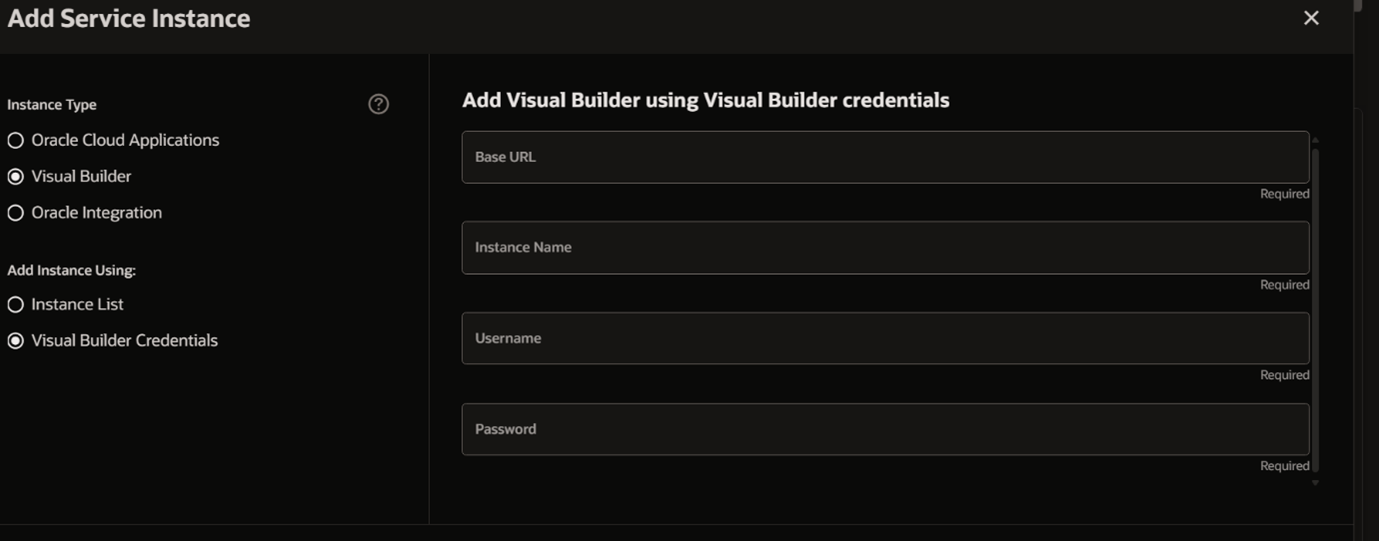
Step 4: Click Add Instance. And select Oracle Application Cloud (Fusion) then add.
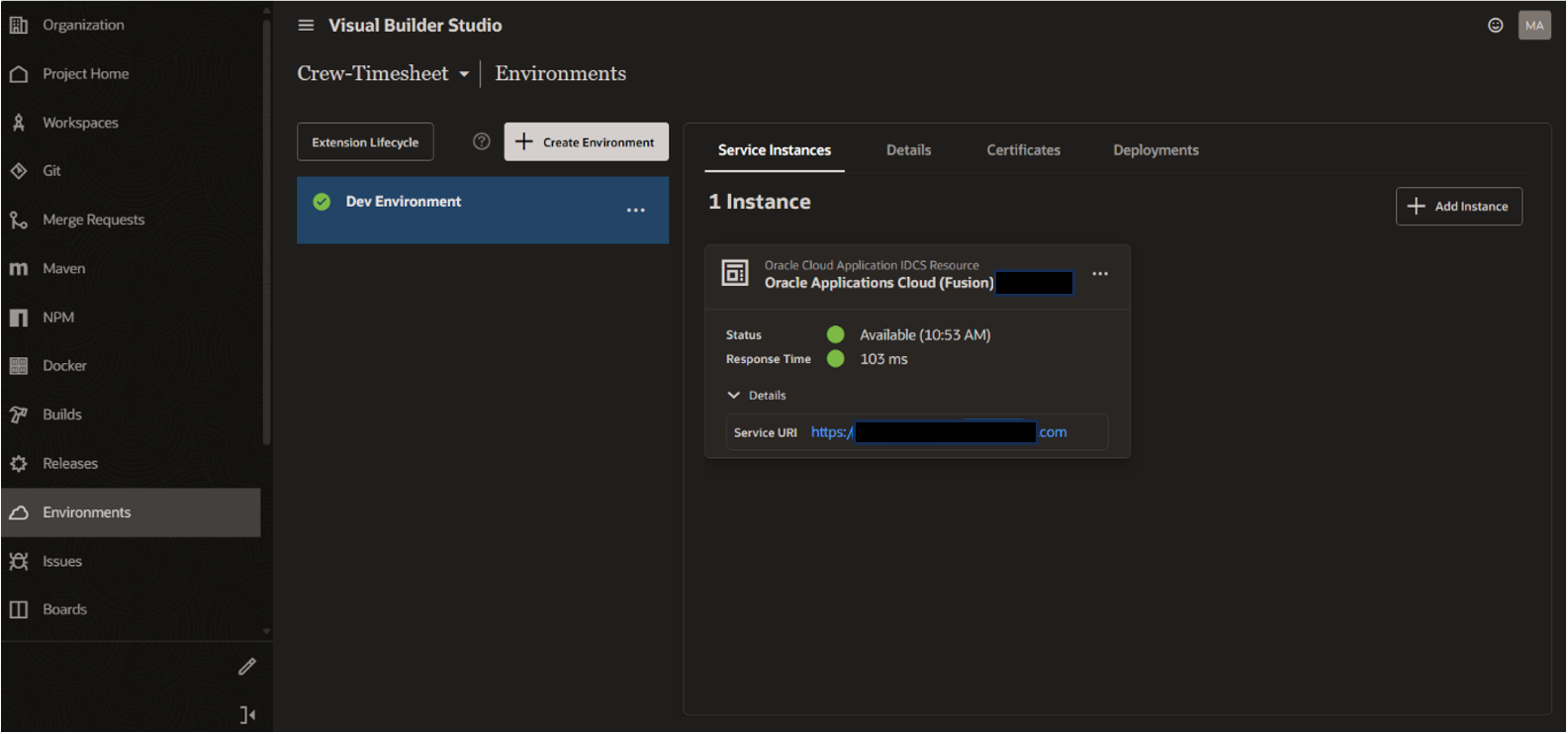
Step 5: Now go back to create Workspace, and it will automatically take the environment created as show in the image below.
Also Read: 5 Easy Steps to develop a simple VBCS application
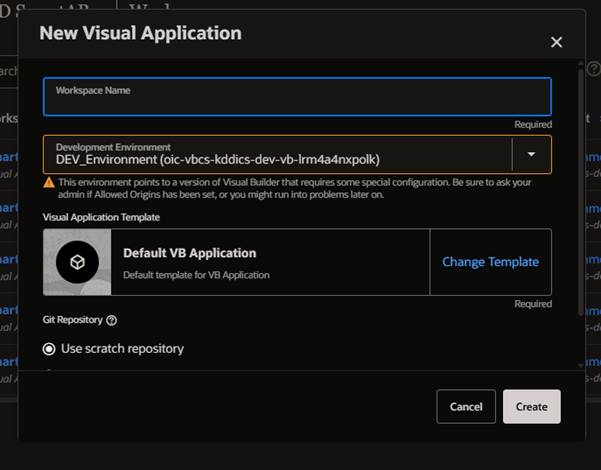
Step 6: You can create a new Repository here or continue with Use Scratch Repository, then create.
It opens the application.
a) Build a Project.
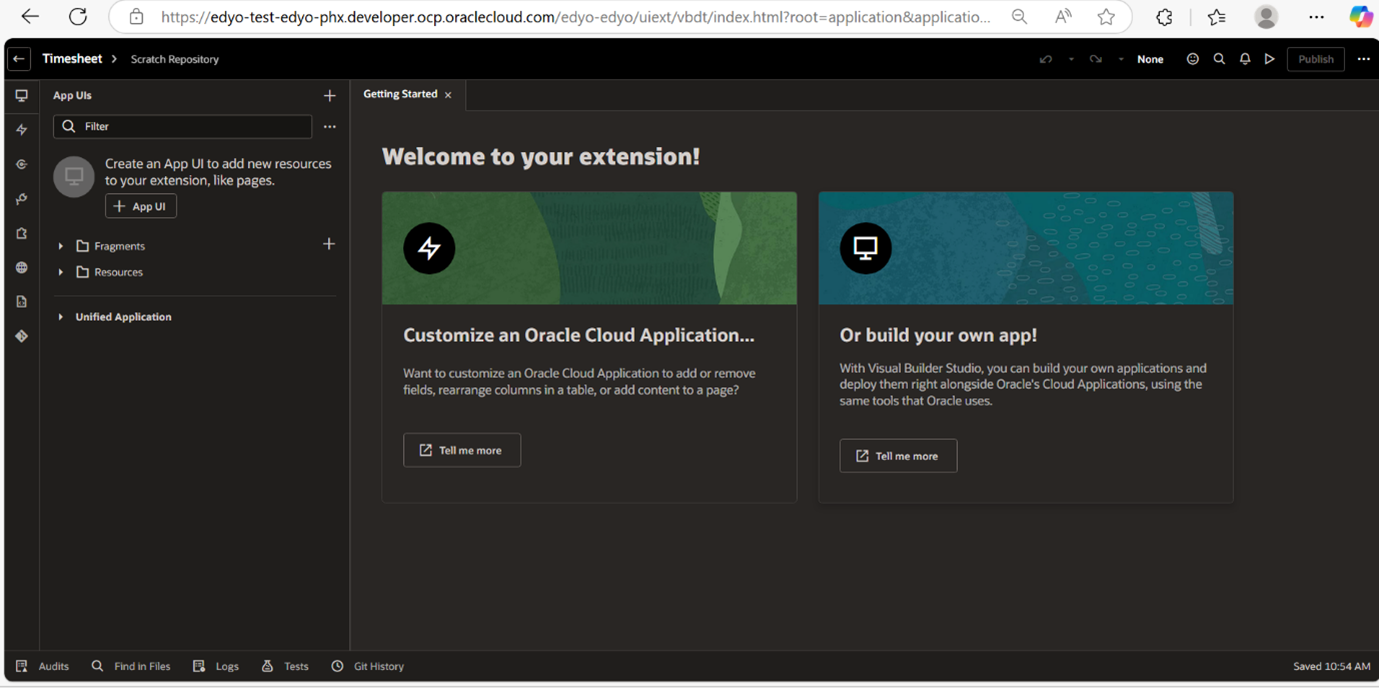
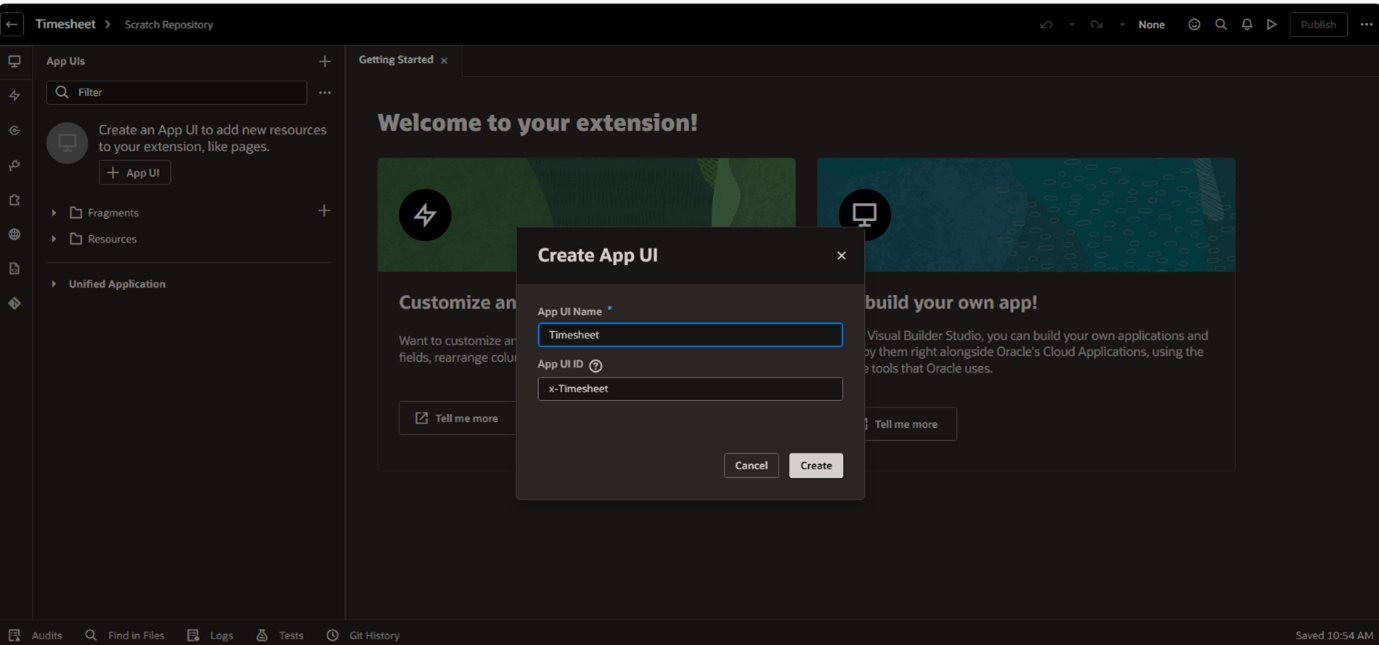
Once the application opens, provide the App UI Name.
The App UI ID will be auto-generated using the name of your application with an x- prefix.
Example: If your app name is JobTracker, the App UI ID will be x-JobTracker.
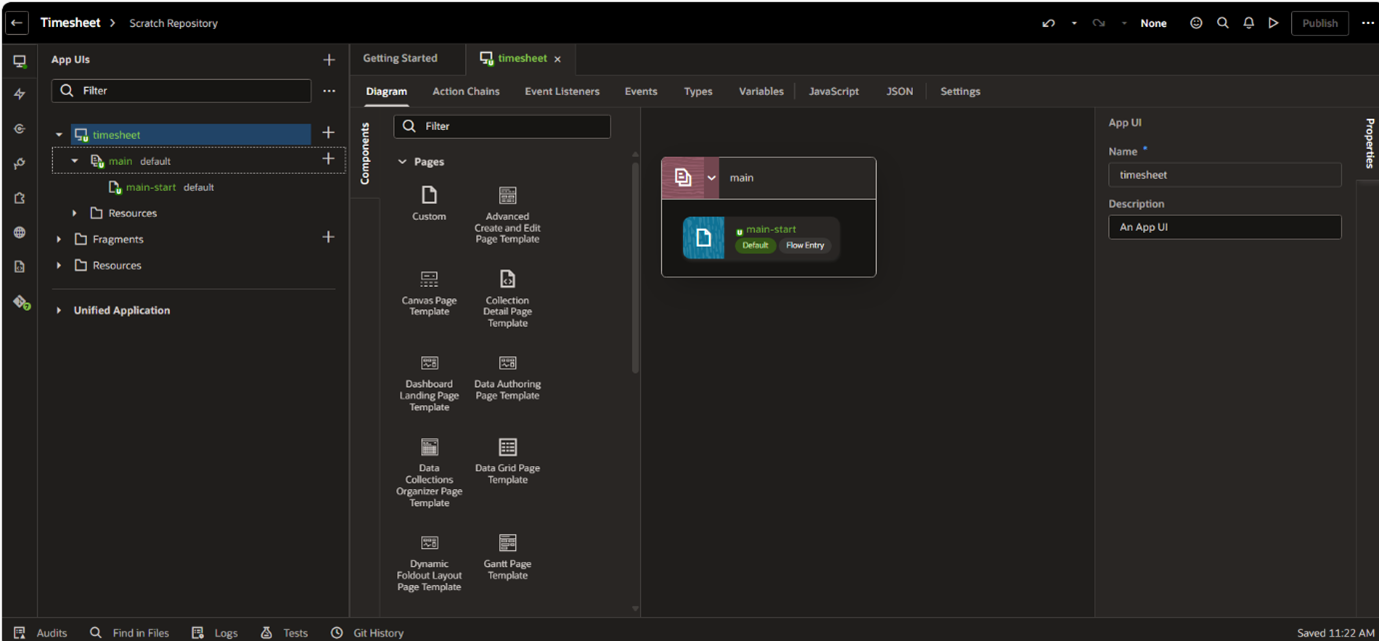
b) Project Structure
A default project structure is created with a Main Flow and a Main Page.
You can now begin building your application within this setup.
c) Create a Service Connection
Note: In VB Extension, you can only use the credentials of the logged-in user. Using Service account credentials is not allowed.
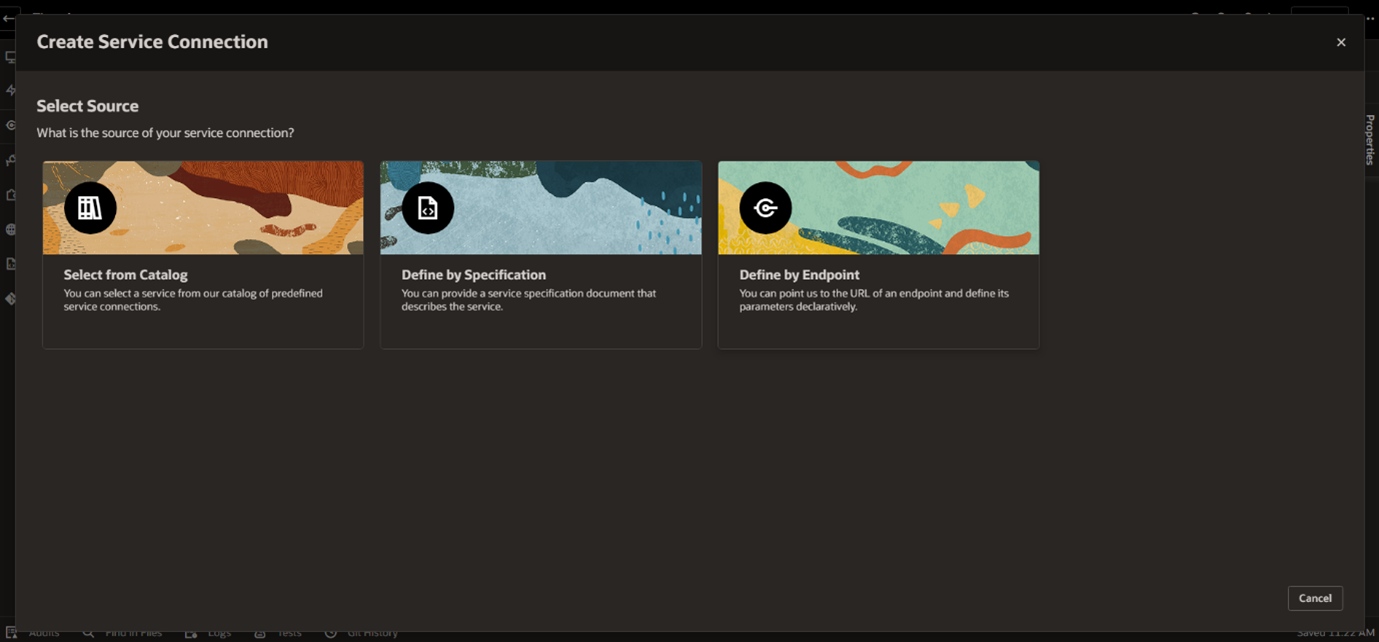
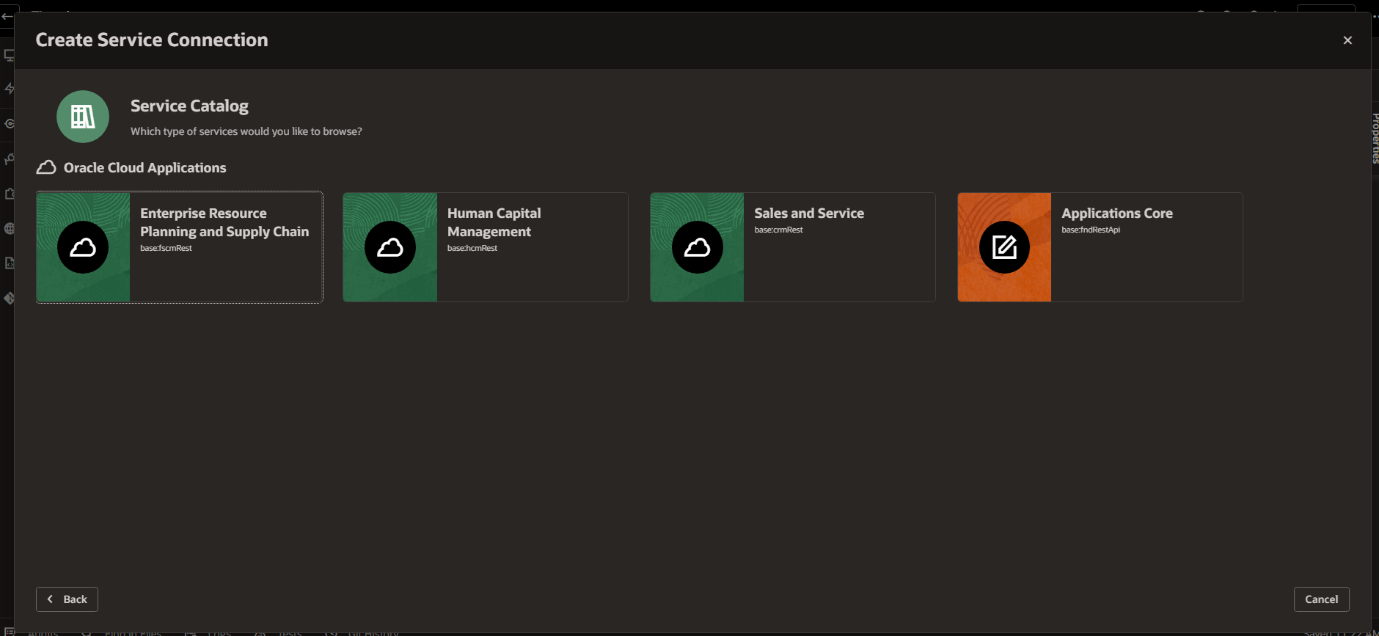
In this example, we have selected the Sales and Service module.
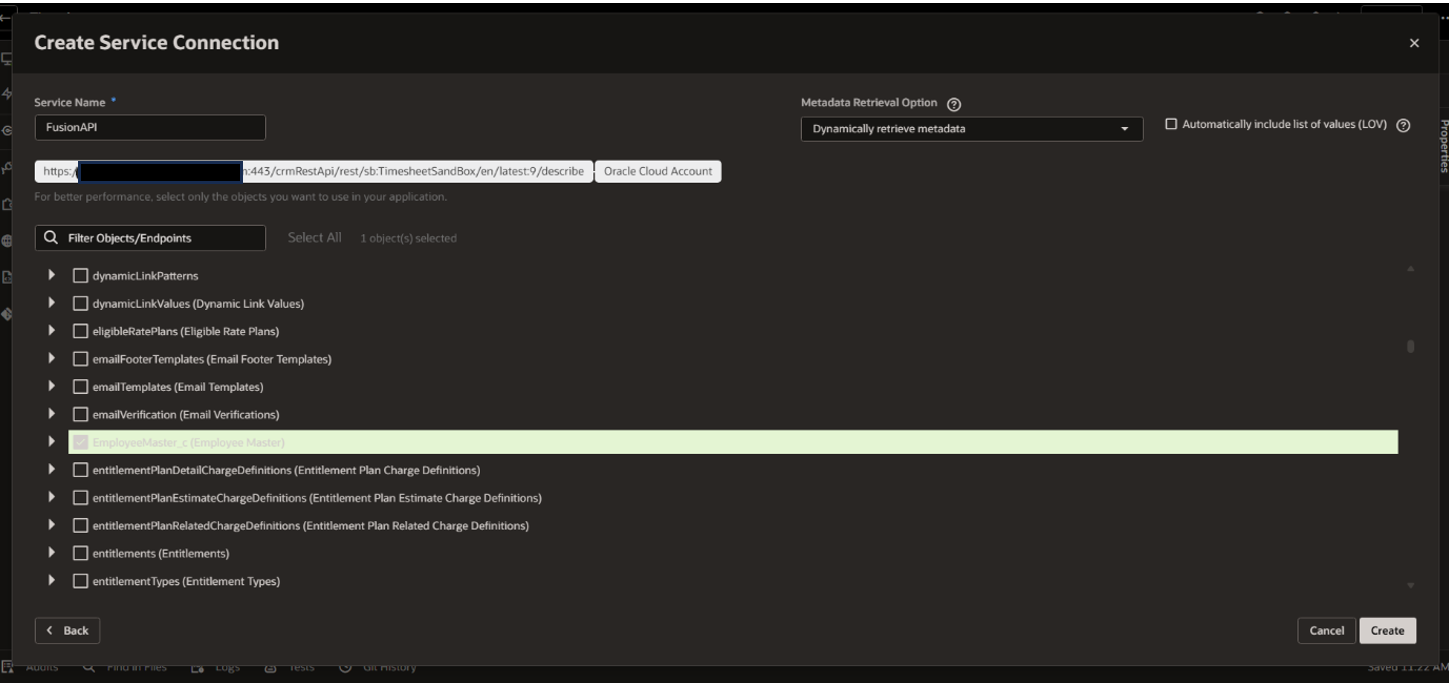
The system will automatically list the available APIs. Now, you can select the APIs you need and provide a Service Name as shown below.
Example Use Case:
We have created a project that lists data from the Job API.
Once done, click the Run button to test your application.
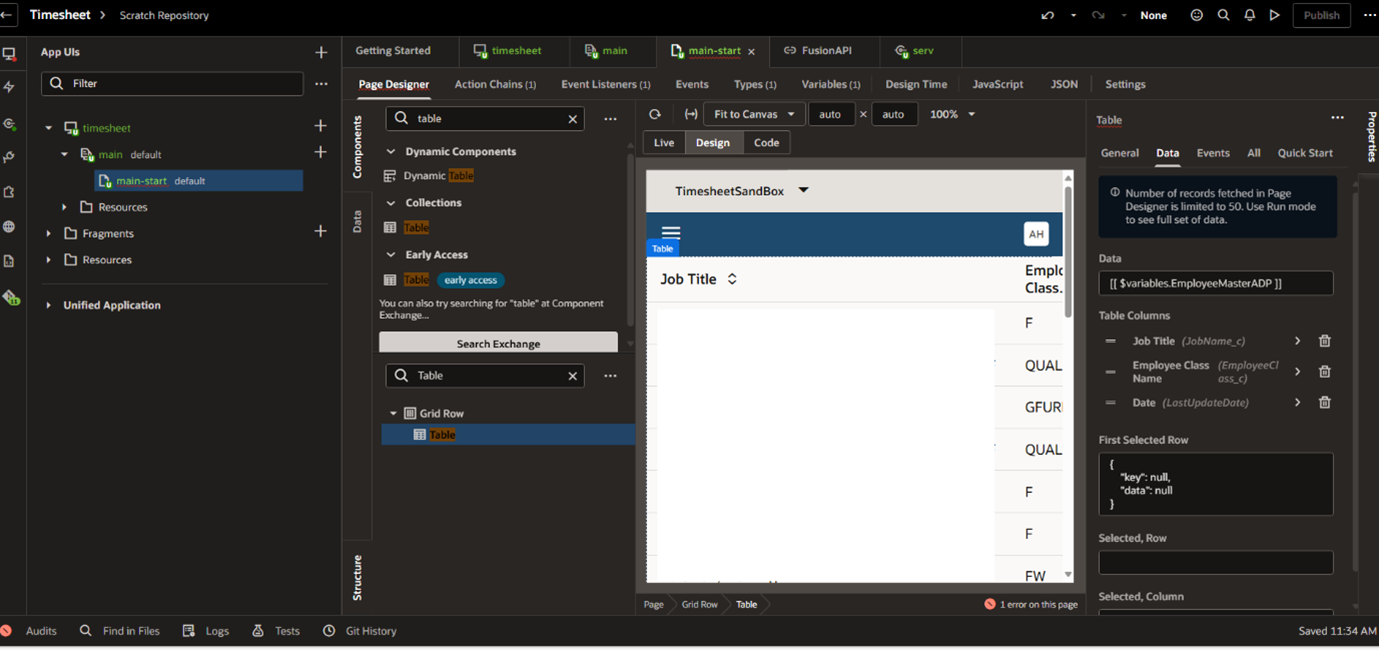
Next, click on the run button to check it. Then, commit your changes as shown in the image below.
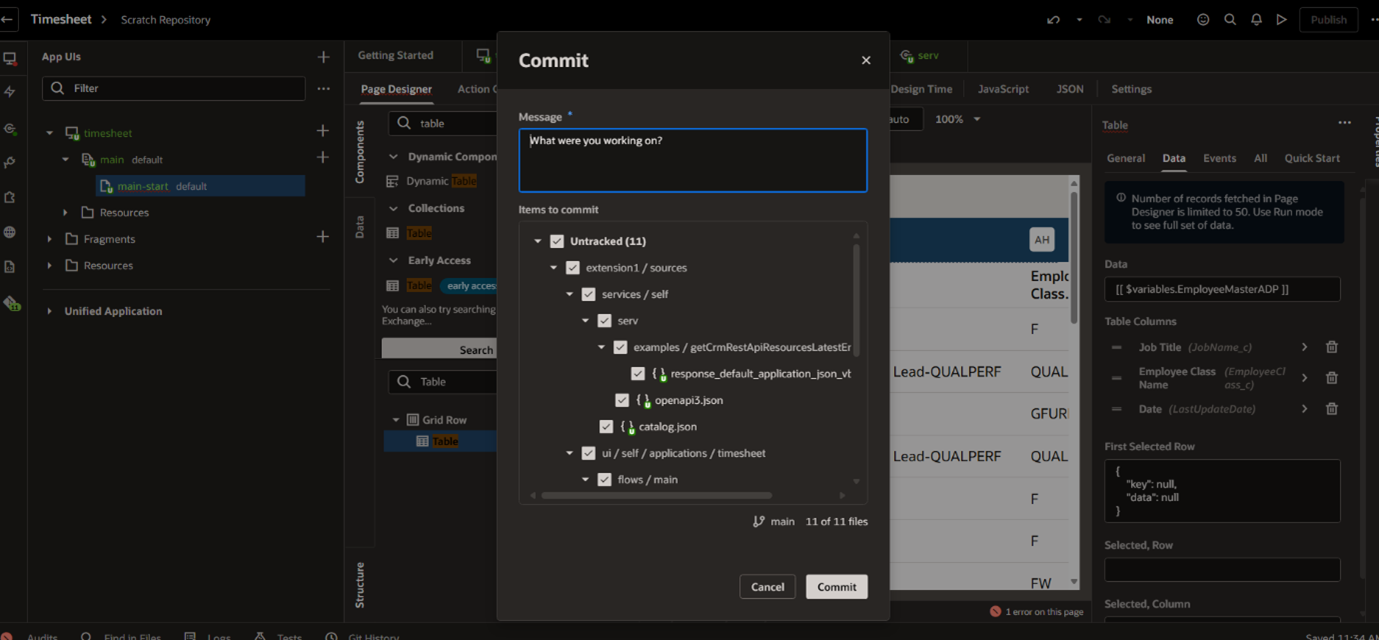
Next step is to push the changes but before that if you are using Scratch repository, then it will ask you to create a repository.
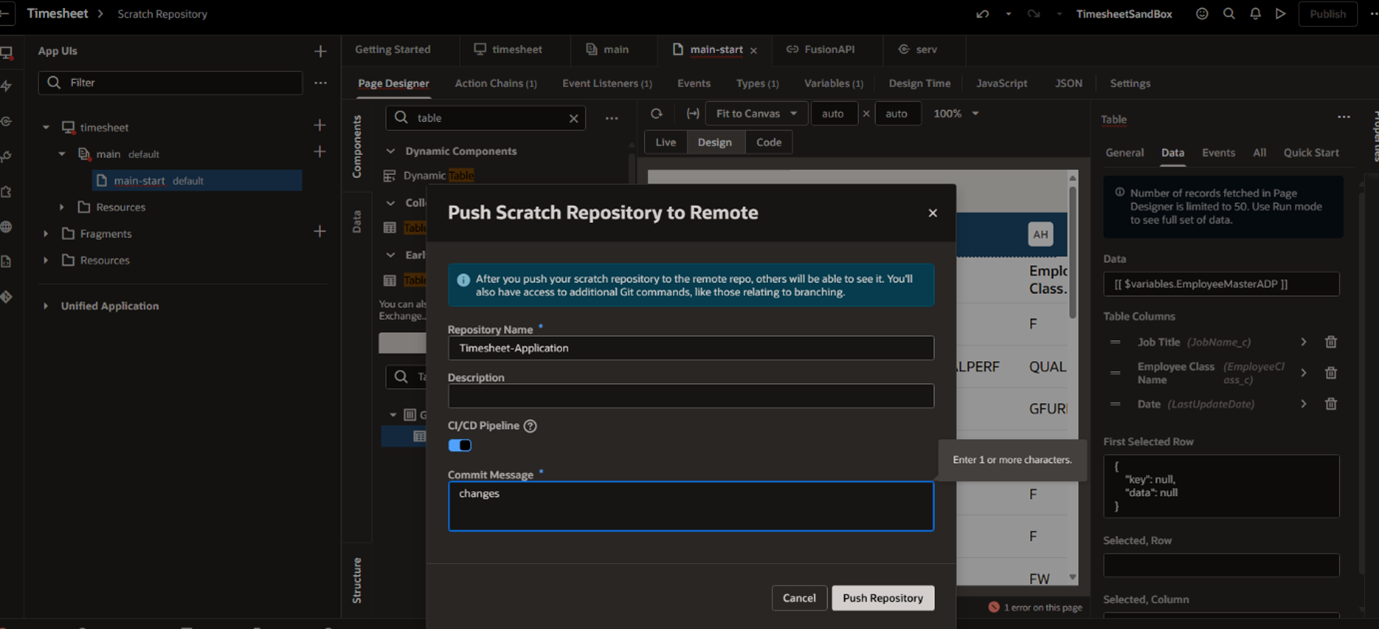
Once it is created, you can successfully Push Repository. Next, click on switch to select it.
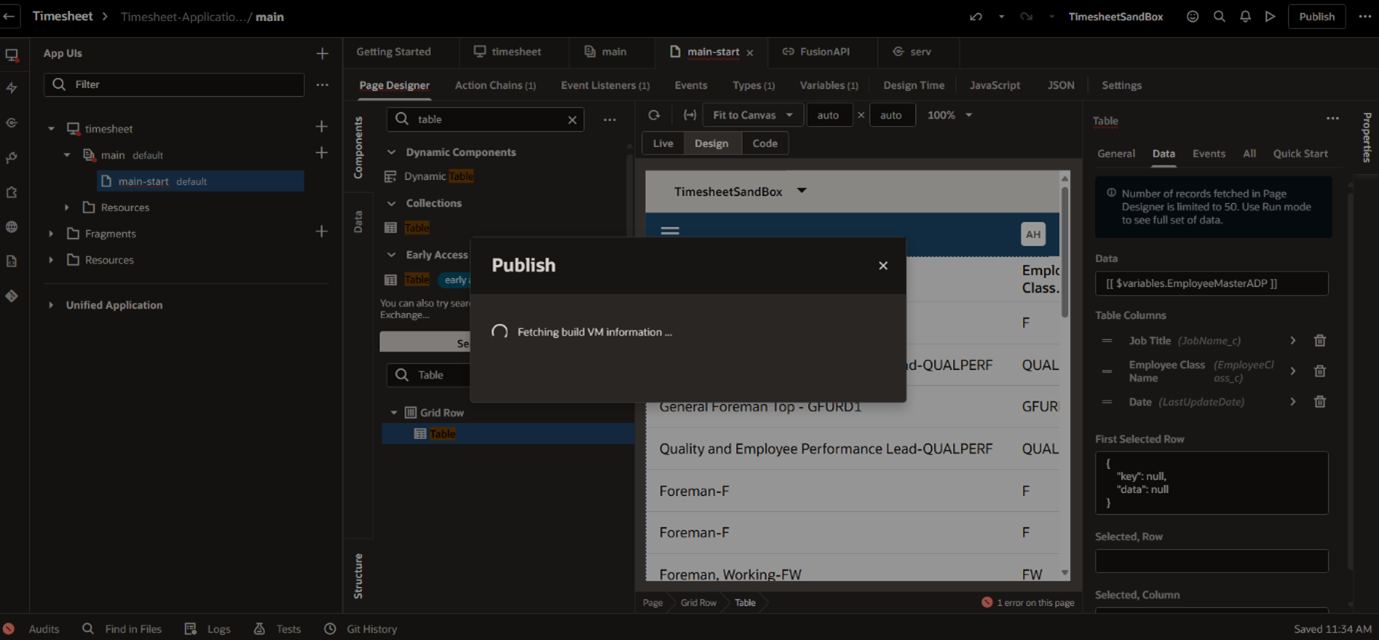
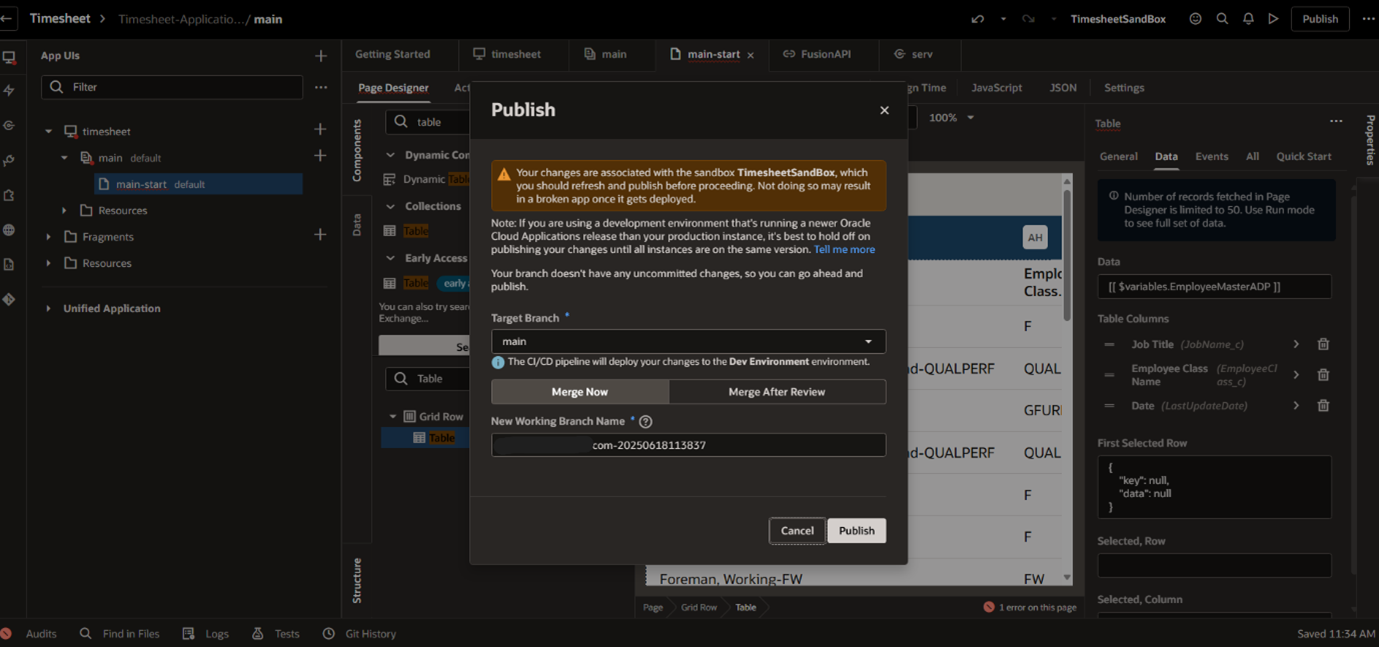
For the first time, it will ask for authorization for environment used in CI/CD pipeline.
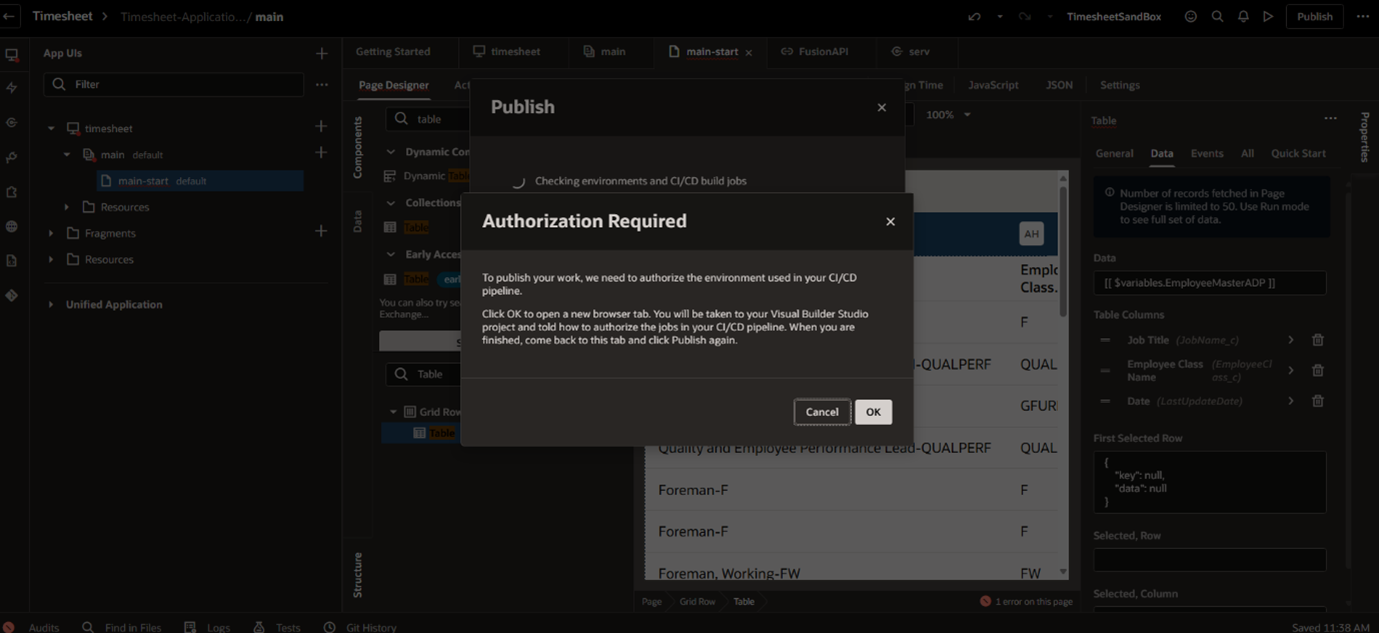
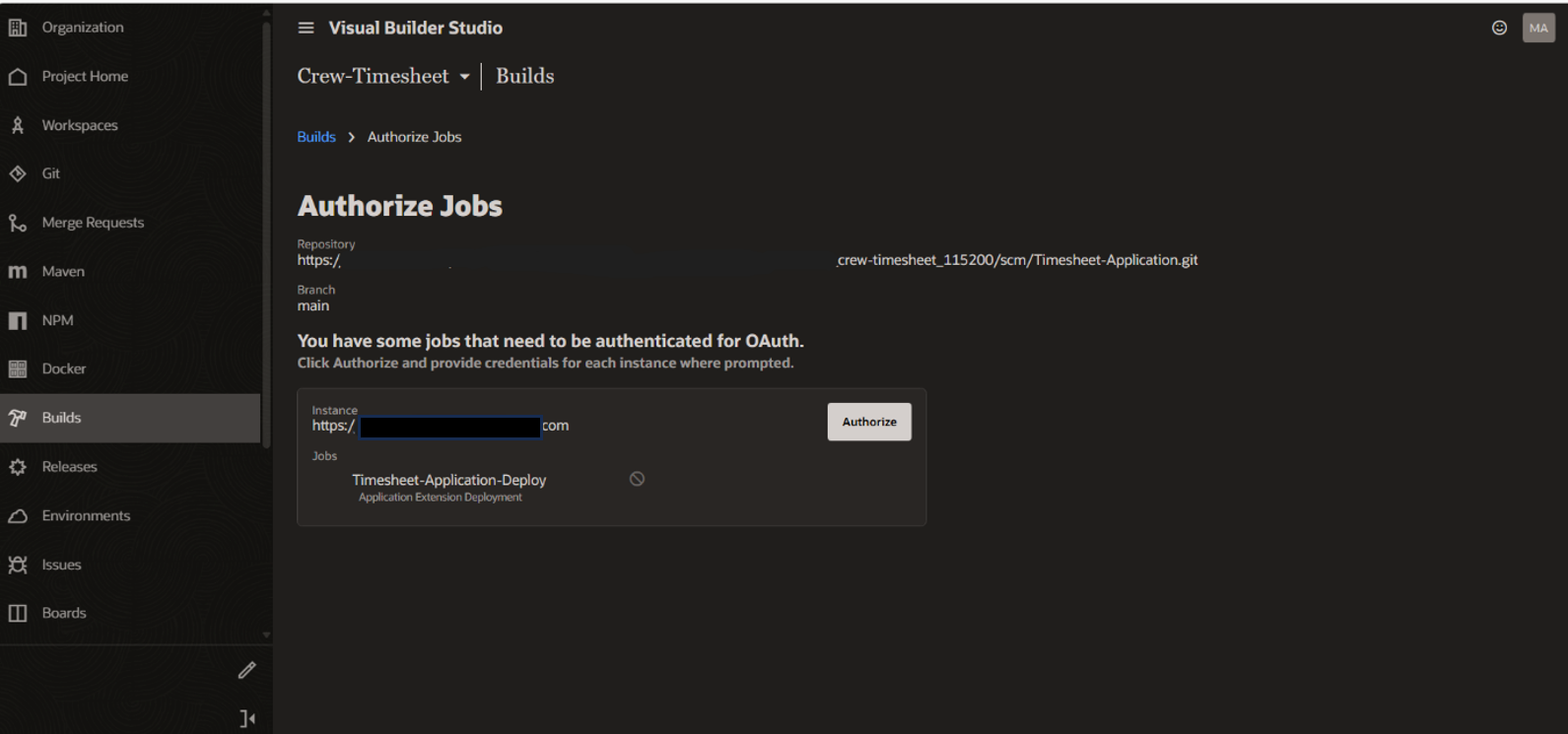
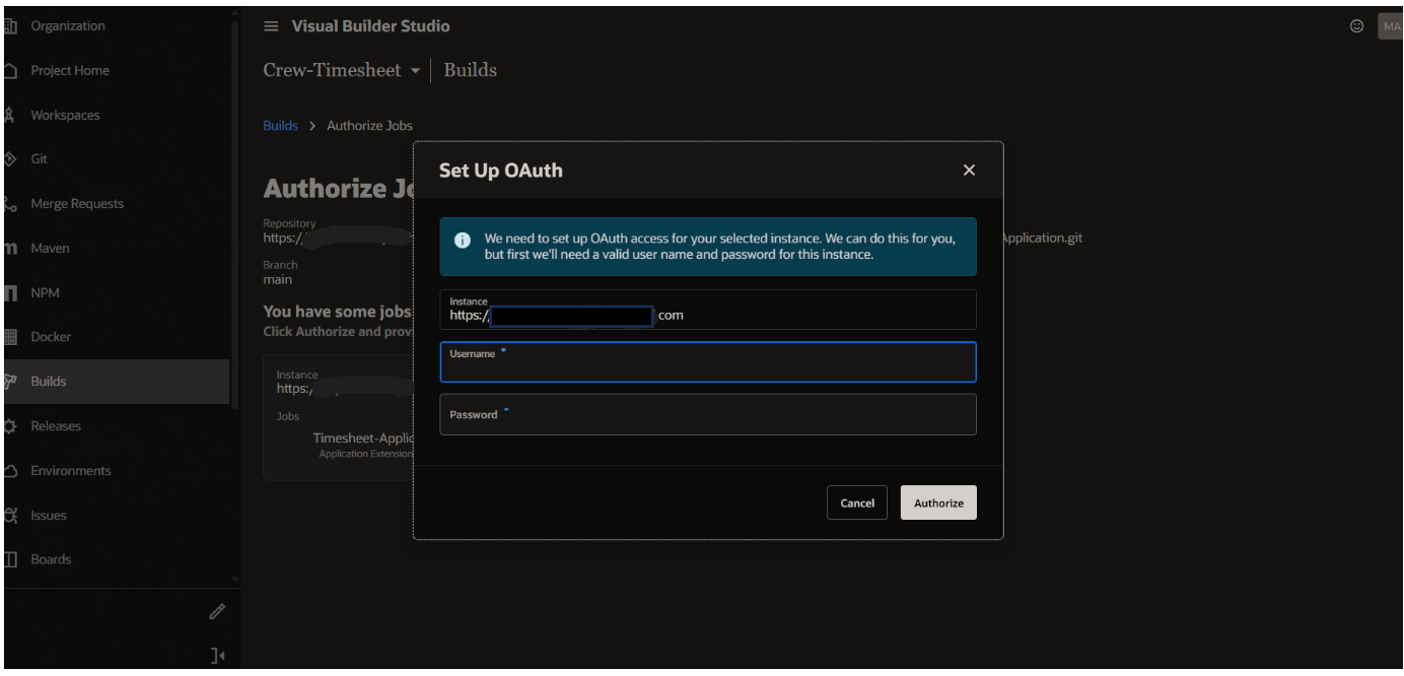
So, provide the service User authentication.
Once the application setup is complete in Visual Builder Studio, it will automatically redirect you to Visual Builder (VB). A build package and deployment pipeline will be created automatically.
d) Automated CI/CD Execution:
- Every time you publish the application, the CI/CD pipeline will run automatically.
- This ensures a consistent and streamlined deployment process.
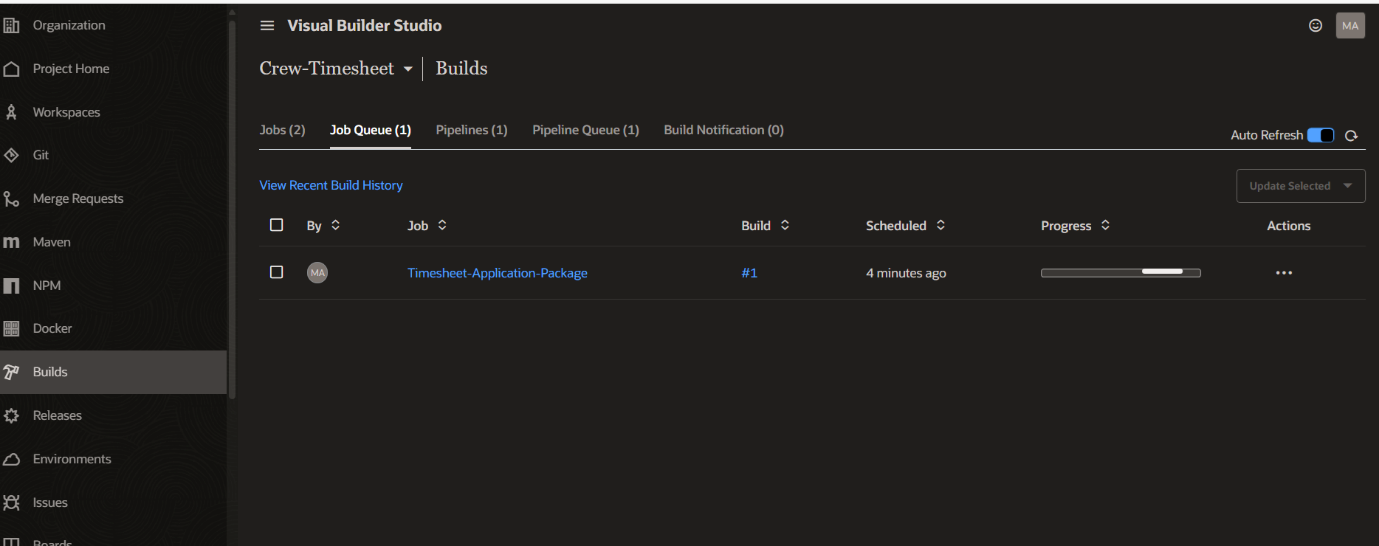
Once the build is Complete, check the other instance.
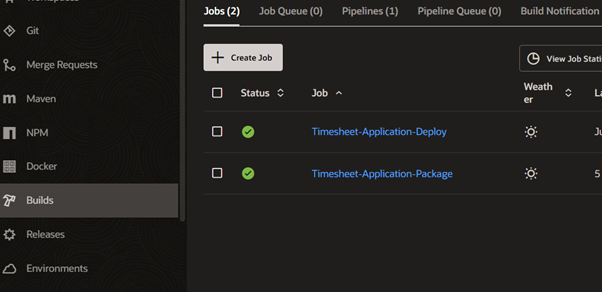
Application gets created on new Instance of VBCS. As application if created through pipeline only admin will be having access for that project.
To give access of that project to team members admin must add the person to the teams inside the project.
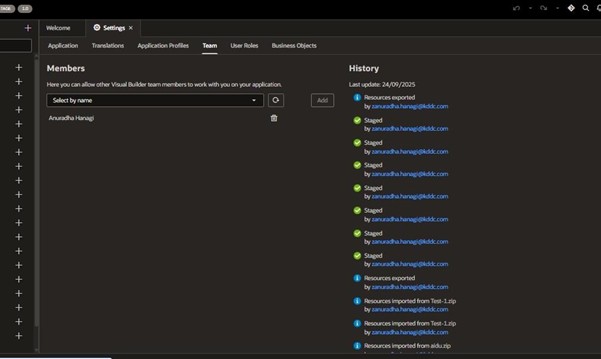
Alternate way:
You can export the entire Visual Builder application from one instance and import it into another.
Steps:
- Go to Visual Builder → Applications
- Click Export to download the .zip package
- On the target instance, click Import and upload the .zip
Limitations:
- Manual effort required
- Can lead to version mismatches
- Service connections and environment settings must be reconfigured
- No automatic build/deploy
No audit or version history
Why CI/CD Through VBS Pipelines Is Recommended
- Fully Automated Migration
Once the pipeline is set, publishing from one instance automatically:
- Builds the app
- Packages the artifact
- Deploys to the target instance
No manual steps → consistent deployments.
Pipelines always deploy the latest committed & verified version from Git.
This avoids problems like:
- Old .zip exports
- Wrong version imports
- Missing files
You always deploy the correct, traceable version.
- Environment configurations are pre-set in the pipeline
- Build → Deploy happens uniformly for all environments
Reduces 90% of configuration mistakes.
This is the professional & automated way.
Final Thoughts:
By leveraging Oracle Visual Builder Studio and its built-in CI/CD capabilities, teams can standardize how VB Extensions move between Fusion or B2B instances. The process reduces deployment risk, improves traceability, and keeps customizations fully upgrade-safe.
With a structured pipeline in place, migrating applications becomes a repeatable operation rather than a one-off exercise. This approach not only accelerates delivery but also makes it easier for admins and project teams to onboard collaborators, manage access, and maintain Oracle extensions at scale.