Enterprise applications are rapidly evolving with the power of Generative AI, and Oracle APEX is now at the forefront of this transformation. By integrating OCI AI Services (Oracle Cloud Infrastructure Generative AI) with Oracle APEX, developers can build an intelligent, enterprise-grade AI Agent directly within their applications without complex integrations or third-party tools.
In this step-by-step guide, you will learn how to build an enterprise AI-powered assistant using Oracle APEX and OCI Generative AI Services in just a few minutes. The tutorial walks you through configuring secure API access, setting up the AI provider, creating AI configurations, and enabling a conversational assistant directly within your APEX application, quickly and seamlessly.
Prerequisites
Before getting started, make sure you have the following in place:
a) An active Oracle Cloud Infrastructure (OCI) account with access to OCI Generative AI Services.
b) An Oracle APEX workspace where you can configure and test the application.
c) Appropriate OCI permissions, including:
- Authorization to use Generative AI services
- Access to manage and generate API signing keys
- Access to the required OCI compartment where AI resources are provisioned
Ensuring these prerequisites are configured correctly will allow you to complete the setup smoothly without permission or access issues.
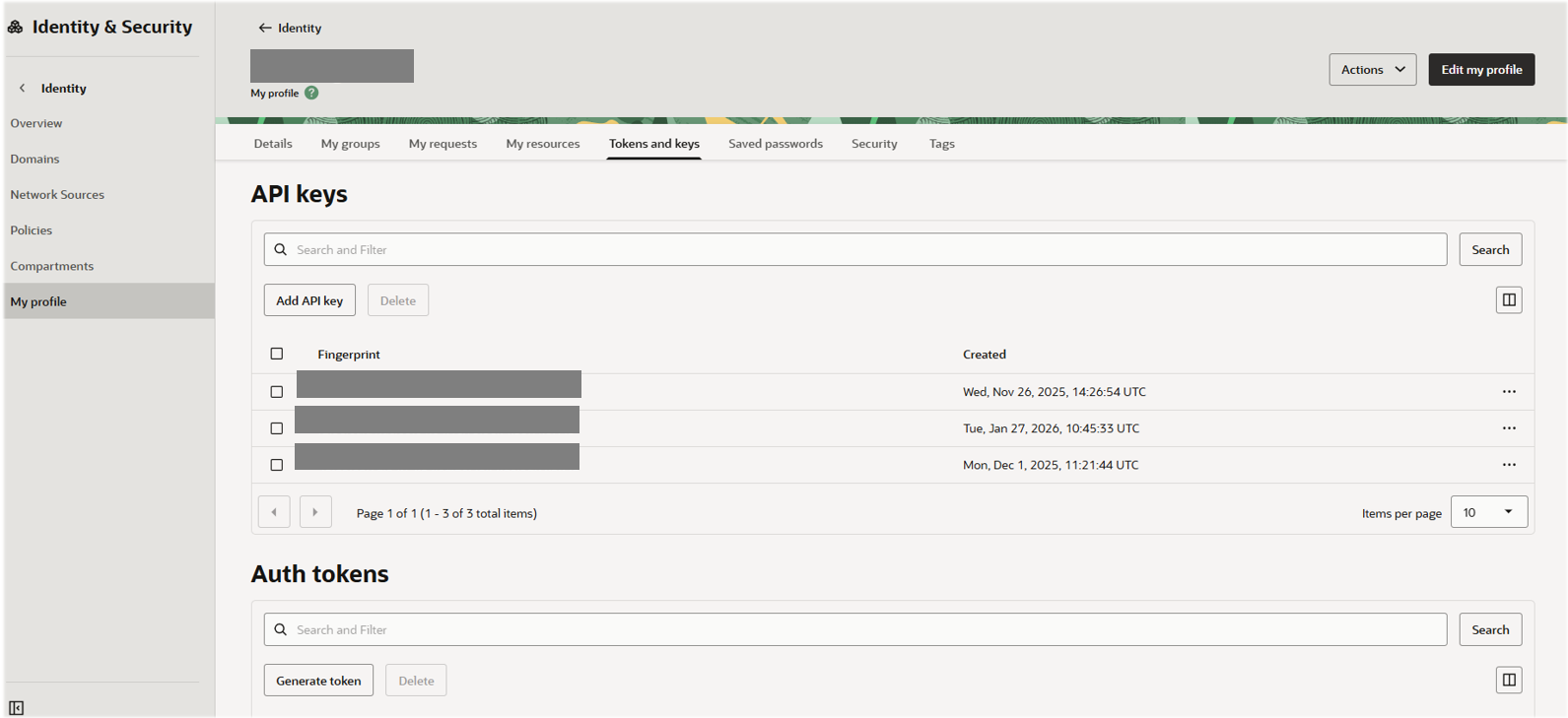
Step 1: Generate/Download OCI API Keys
OCI uses API signing keys for secure authentication.
Instructions:
- Go to Profile → User Settings → API Keys in OCI.
- Click Add API Key → Generate API Key Pair.
- Download both the Private Key and Public Key.
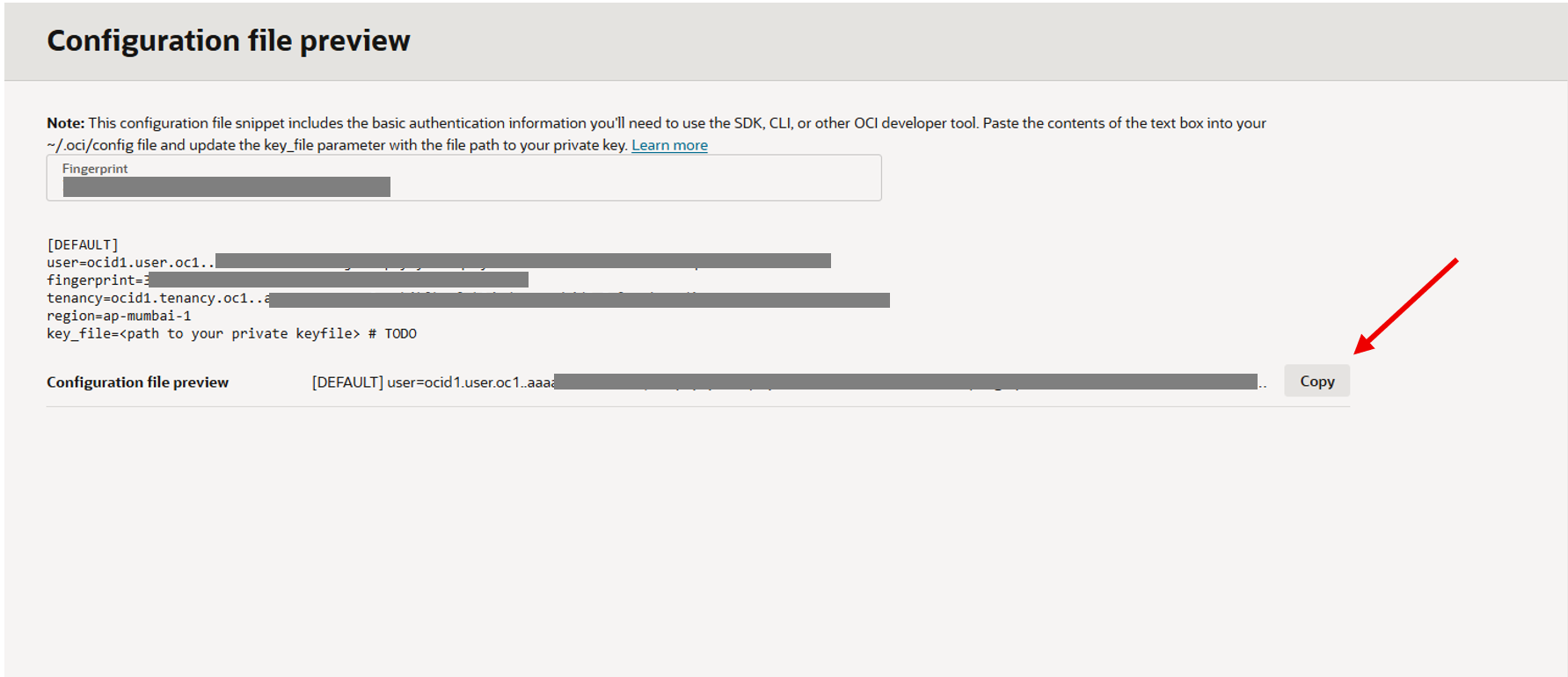
- Copy the fingerprint and configuration details displayed.
Tip: Keep your private key secure and do not share it with anyone.
To generate OCI API Keys, please navigate to the screen as shown below:
Step 2: Copy Credentials from OCI and Configure in Oracle APEX
Instructions:
- Navigate your application in App Builder.
- Go to Shared Components → Generative AI Service → Add Credentials.
- Create a new credential and provide:
- Private Key
- Public Key
- User OCID
- Tenancy OCID
- Fingerprint
- Region
- Copy credentials from OCI, as shown in the image below and Add these into Generative AI Services in the shared component shown in the next step.
Step 3: Create AI Provider in APEX
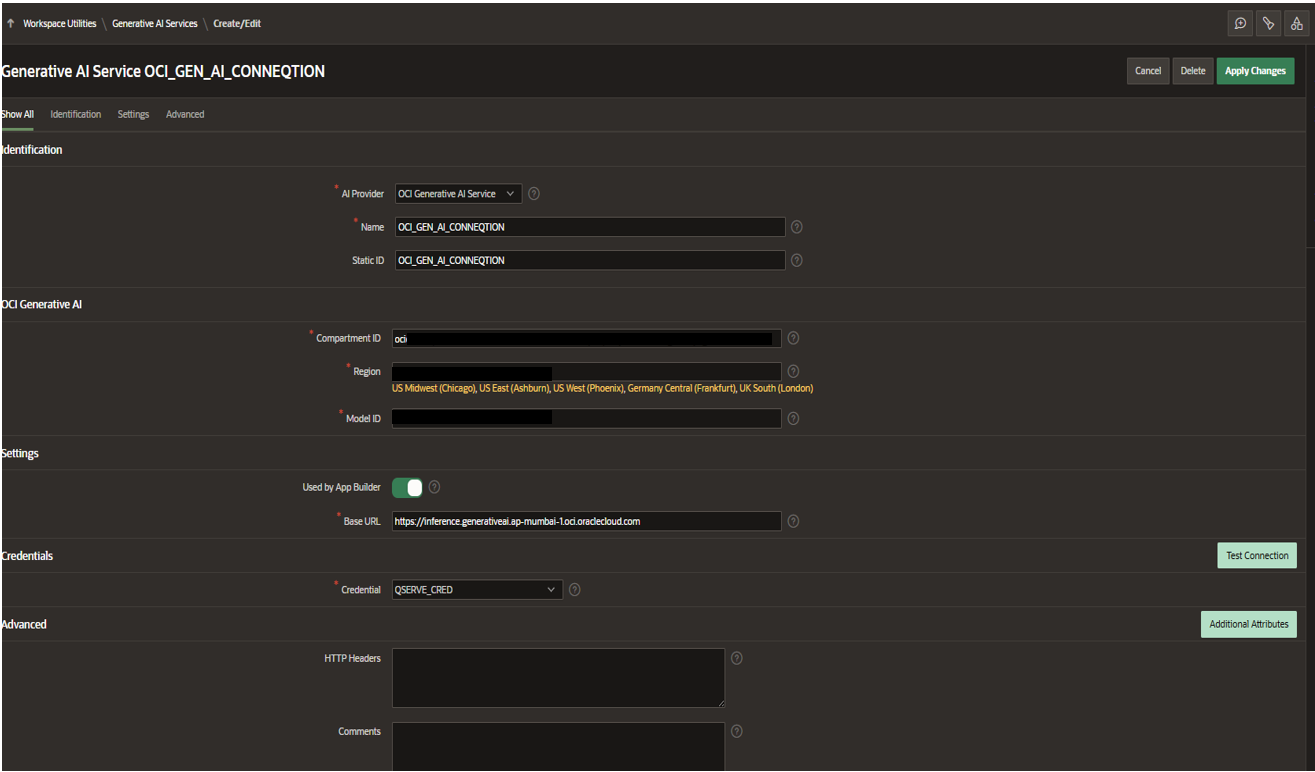
The AI provider connects your APEX application to OCI Generative AI Services.
Instructions:
- Go to Shared Components → Generative AI → AI Services.
- Click Create AI Provider.
- Enter the following details:
- AI Provider: OCI Generative AI Services
- Provide a name and Static ID
- Credential: Paste the OCI credential, as copied earlier
- Provide the Region, Compartment, Model, Endpoint
- Save the provider configuration.
Step 4: Create AI Configuration
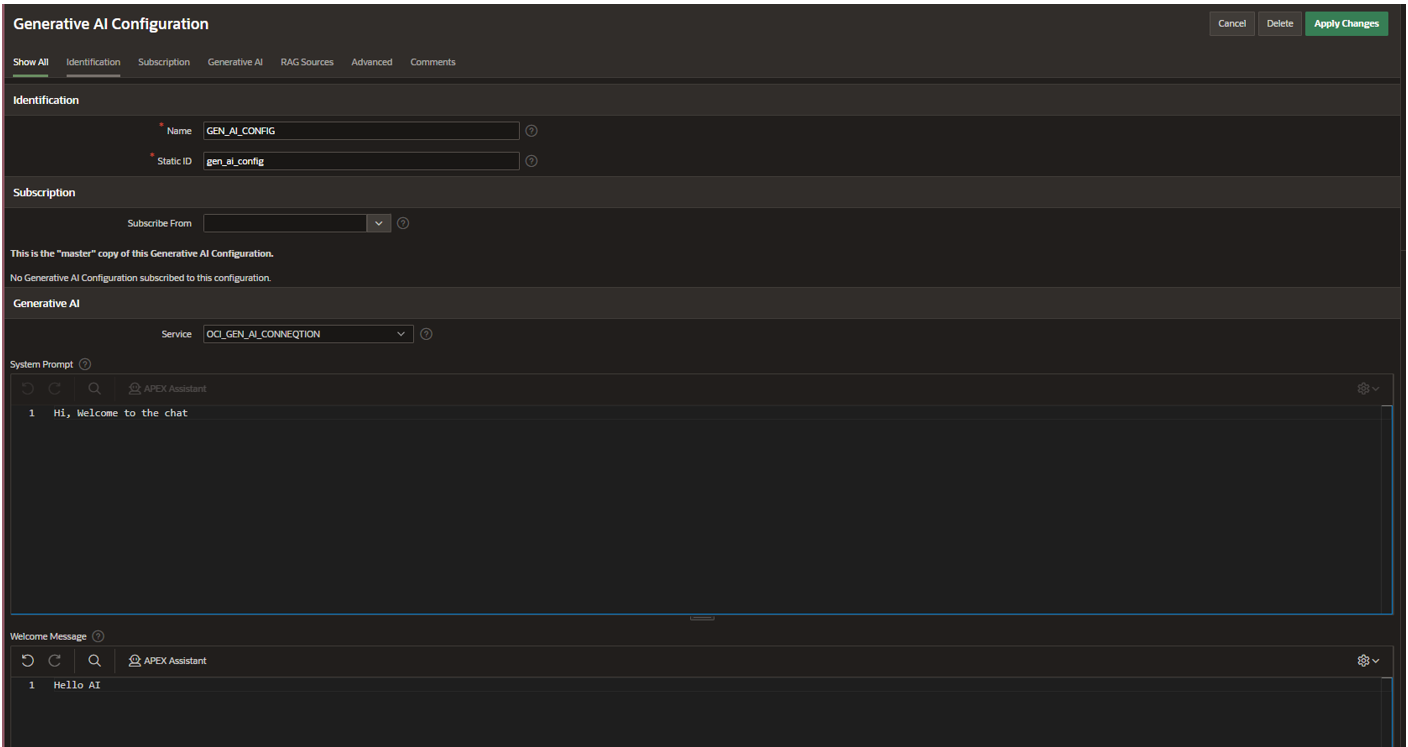
The AI Configuration defines the AI assistant’s behavior and interaction style.
Instructions:
- Go to Shared Components → Generative AI → AI Configurations.
- Click Create AI Configuration.
- Provide a Configuration name and static ID and
- In the Service: Select the AI provider created in Step 3.
- Provide a System Prompt as per your needs
- Save the Configuration.
Step 5: Add an AI Assistant Button to an APEX Page
Add a UI element to trigger your assistant.
Instructions:
- Open your desired page in Page Designer.
- Add a Button with the label: AI Assistant.
- Position it in a suitable region on your page (toolbar, region header, etc.).
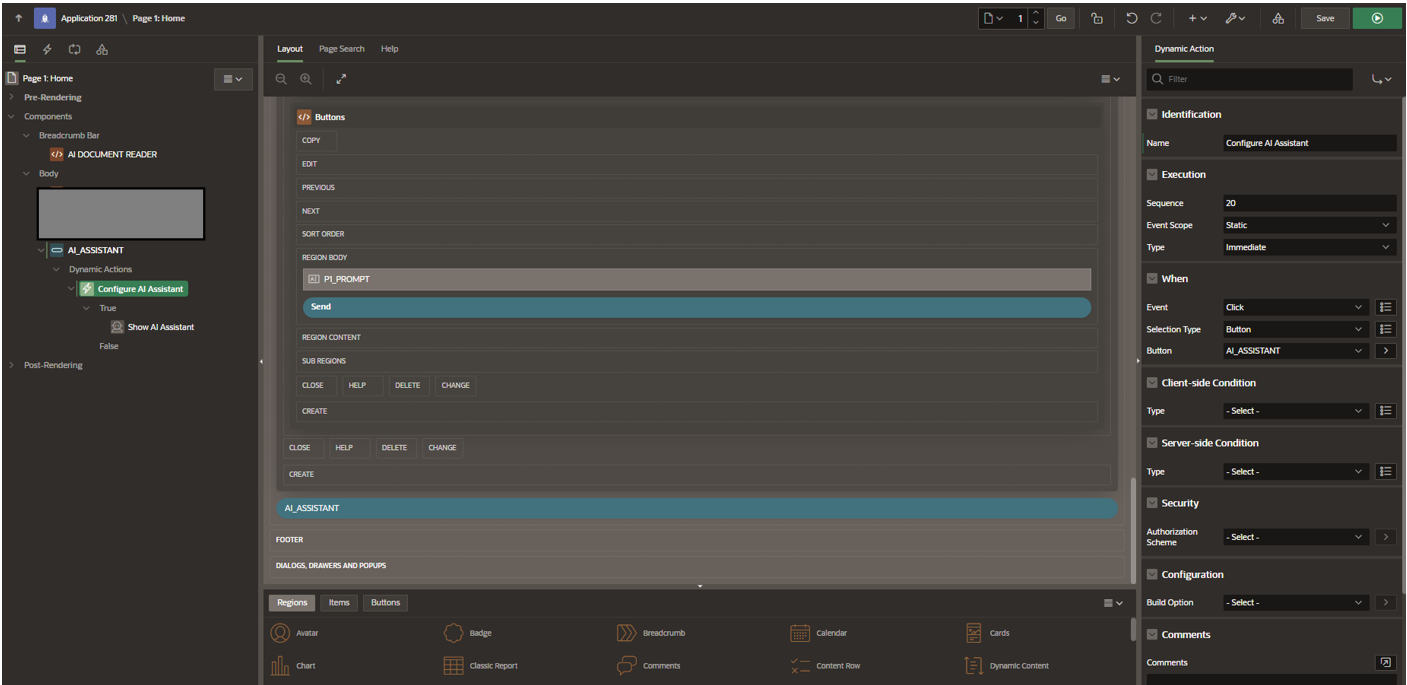
Step 6: Create Dynamic Action to Activate AI Assistant
Configure the button to show the AI assistant when clicked.
Instructions:
- Select the button and choose Create Dynamic Action.
- Set the following:
- Event: Click
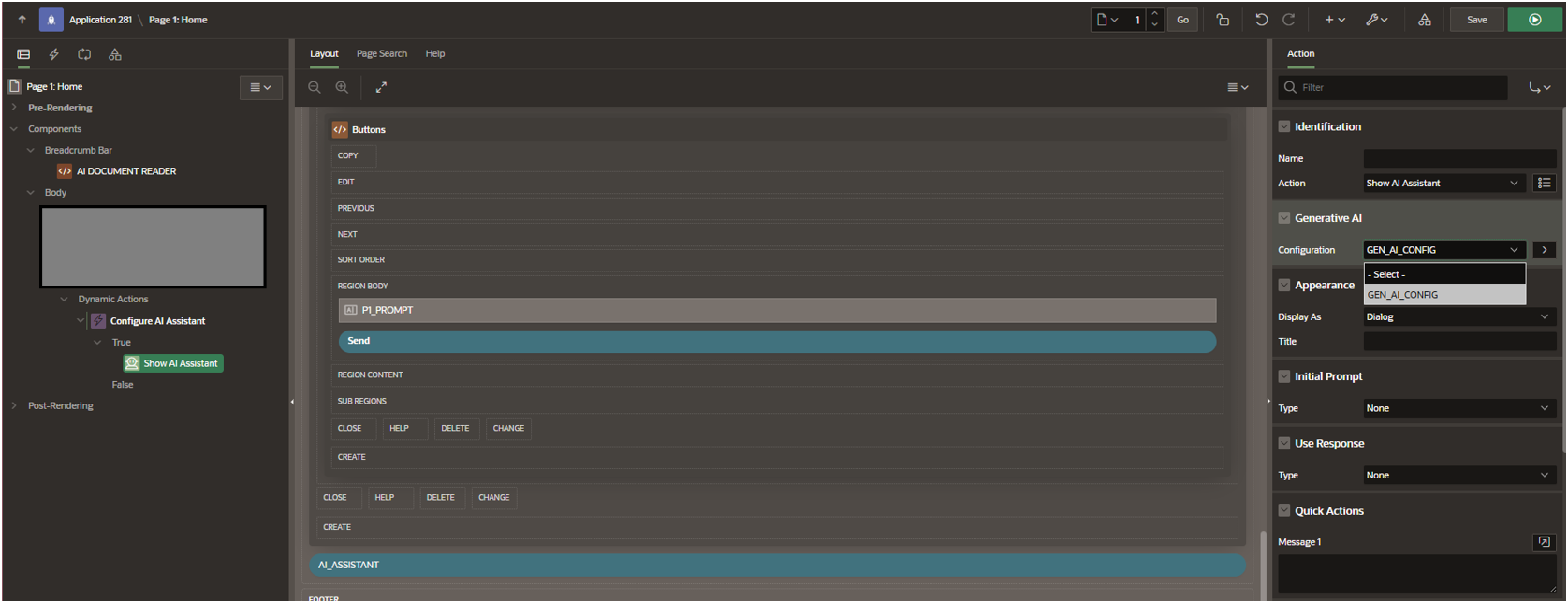
- True Action: Show AI Assistant
- AI Configuration: select the configuration created earlier
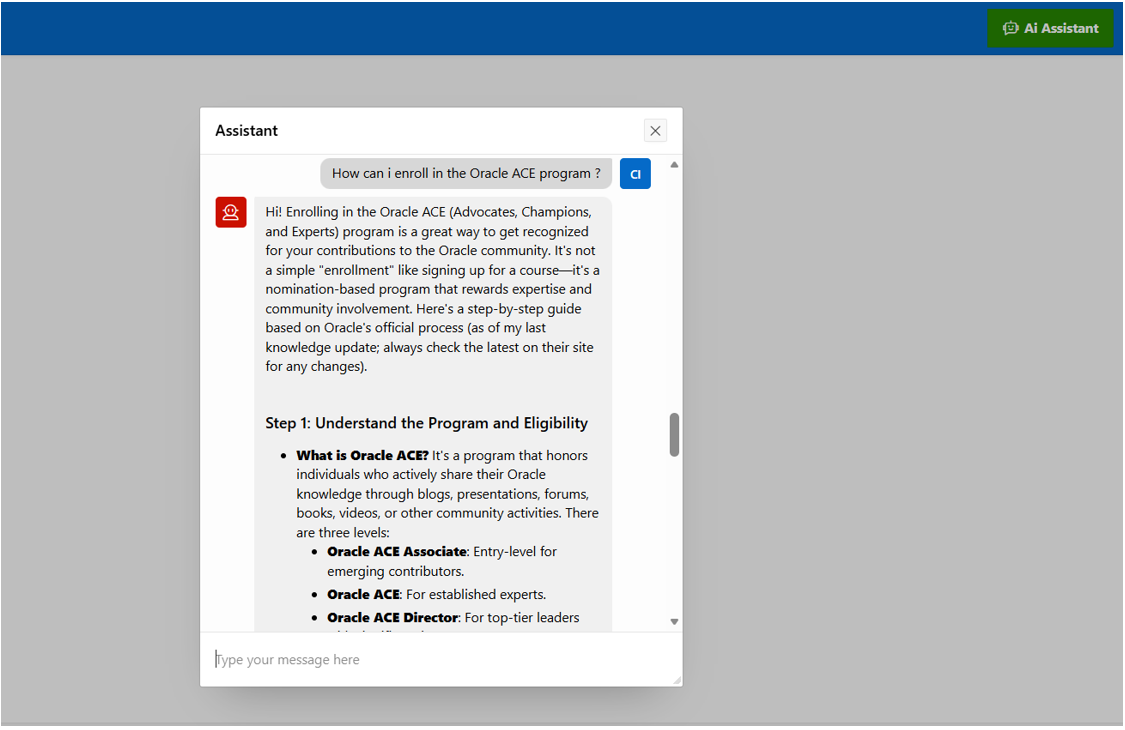
- Save and run the page.
You have now built an Enterprise AI-powered assistant within your Oracle APEX application in a few simple steps.
Conclusion
Integrating OCI Generative AI with Oracle APEX enables you to quickly build an enterprise AI-powered assistant directly within your application, enhancing user engagement and delivering intelligent, contextual interactions. By generating API keys, configuring credentials, setting up the AI provider, and activating the assistant through Dynamic Actions, you can seamlessly introduce AI capabilities into your Oracle APEX environment.
This is just the beginning. Beyond general conversational assistance, the solution can be extended to interact with enterprise data, automate workflows, and deliver personalized insights. In our next blog, we will explore how to connect the assistant to your application data, enabling users to ask business-specific questions and receive meaningful, data-driven responses within the same intelligent interface.