When an employee goes on leave, someone has to set up a vacation rule so that approvals and notifications reach a delegate. In Oracle Fusion, this is configured from the user menu, in the notification rules screen. In our setup, it is a UI-only step with no integration endpoint to call. Doing it by hand for every leave request is slow, and it is easy to get wrong.
Oracle Integration (OIC) offers a way to handle tasks like this. A robot built in the Robot Designer can drive the browser the way an HR user would, so work that has no API can still be automated and monitored next to your integrations.
In this blog, we explore what an RPA robot is in OIC, walk through the SET_VACATION_RULES_RPA robot built to automate HR delegation, show how to configure the XPath locators that make a robot reliable, and cover the design habits and troubleshooting patterns worth knowing before you build one for production.
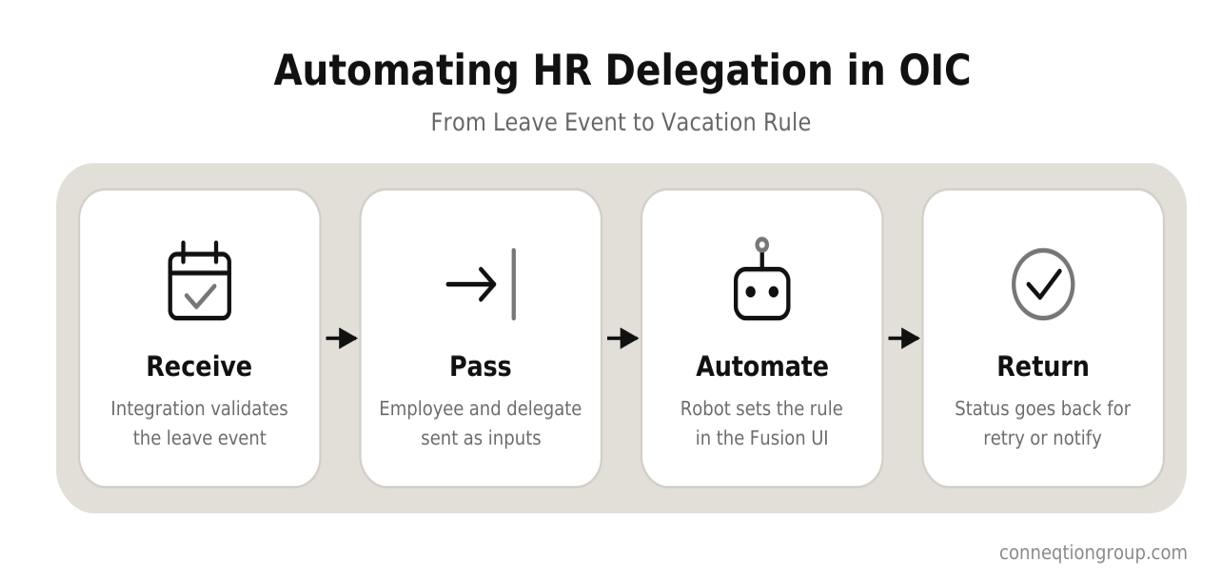 The integration passes the employee and delegate to the robot, and the robot drives the Fusion screens and returns its status.
The Challenge: A Fusion Task With No API
Most Oracle Fusion automation starts with an API. REST services, SOAP services, and adapters make integrations fast and stable. But some tasks exist only on a screen. Setting a user’s vacation rules is one of them.
Without automation, an HR user must sign in, open the notification rules, search for the employee, and enter the delegate details for every leave request. The steps are simple, but the volume makes them error-prone, and a missed or incorrect rule means approvals sit with someone who is not available.
The fix is not a separate RPA tool. It is a robot that runs inside OIC, called by an integration that already knows about the leave event.
The Solution: An RPA Robot Inside Oracle Integration
A robot is an automation built in OIC’s Robot Designer that operates an application’s web UI. Oracle describes it as robotic process automation (RPA) available directly within Oracle Integration, so robots are designed, run, and monitored alongside integrations.
A robot is a sequence of actions, each doing one thing in the browser. The common action types include:
- Open a page: launches the application URL.
- Enter Text: types into a field.
- Click Element: clicks a button, tab, or link.
- Wait: pauses for a fixed time or until an element is visible.
- Switch and Window: branches on a condition or moves to another browser window.
Credentials and the application URL are stored in a robot connection, not hard-coded in the flow. Every action that touches the page also needs a locator, which tells the robot which element to act on.
Robots vs Integrations
Both have a place, and they behave differently.
- Integration: talks to the application through REST, SOAP, or adapters. It is fast and contract-based, and it breaks when the API contract changes. Use it when an API exists.
- Robot: works through the web UI, like a user. It is slower and depends on the page structure, and it breaks when the page HTML or flow changes. Use it when no API covers the task.
The rule to follow is simple. Use an integration whenever an API exists, and use a robot only for the gap. A robot is the more fragile of the two, so every step has to earn its place. In practice, an OIC integration orchestrates the process and the robot handles the one UI-only step. For more on the integration side, read our blog on Building Enterprise AI Integrations Using the Model Context Protocol (MCP).
How the SET_VACATION_RULES_RPA Robot Works
SET_VACATION_RULES_RPA (version 01.00.0007, active) is the robot that performs HR delegation. It signs in to Oracle Fusion, opens the user’s notification rules, and sets up the vacation rule so approvals route to a delegate. An OIC integration calls it and passes in the employee and delegate details.
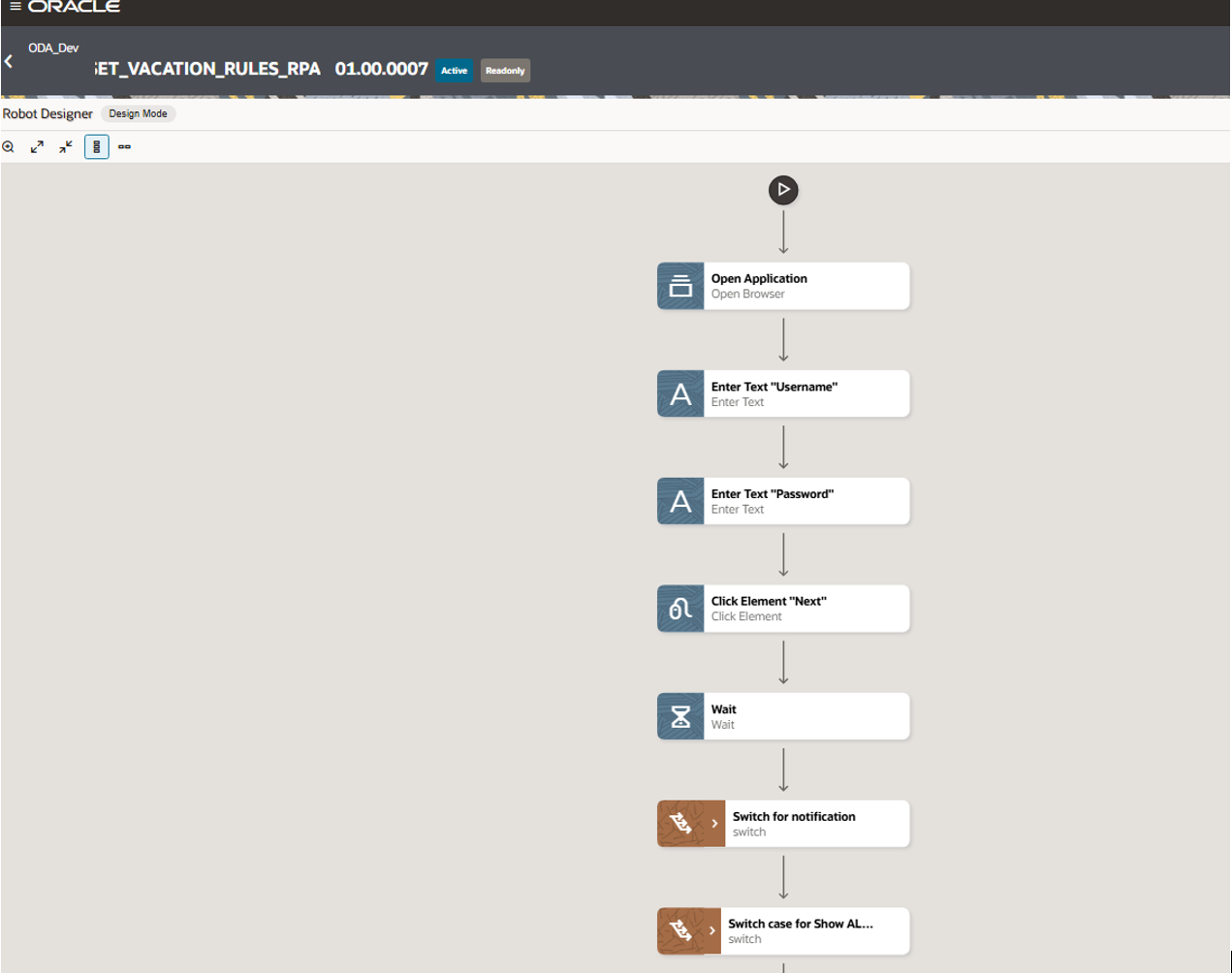
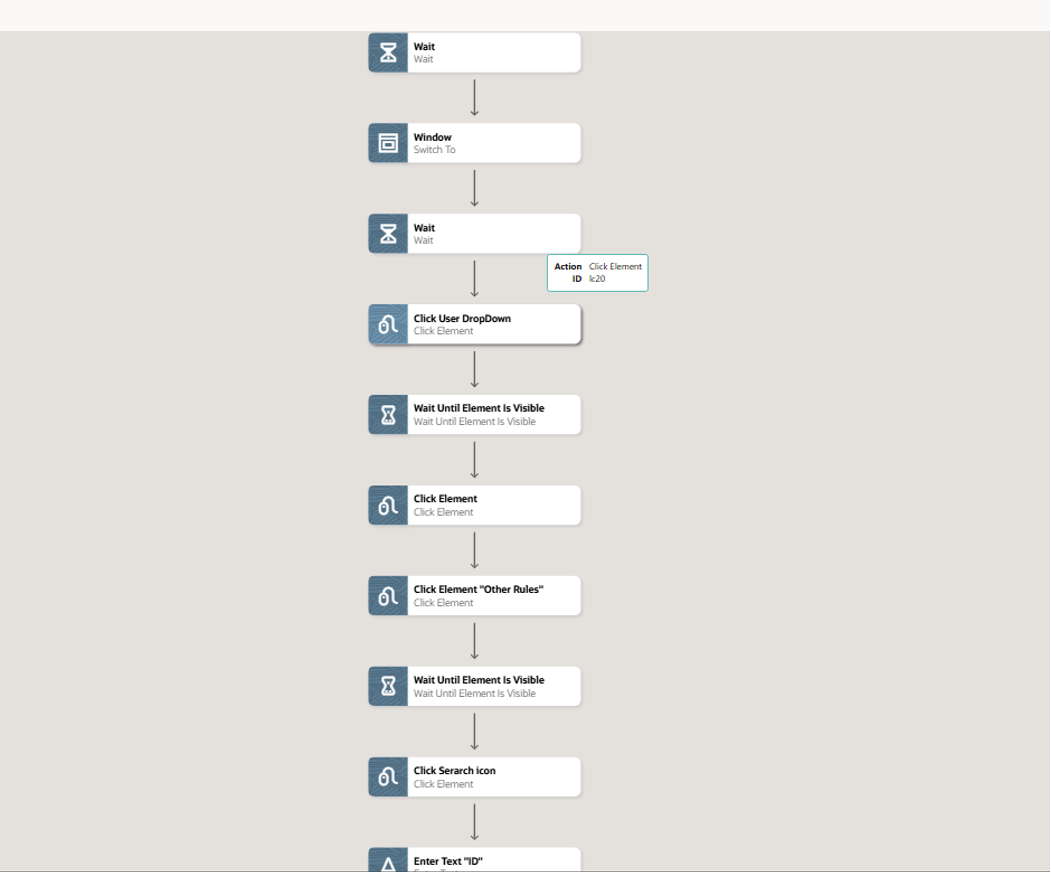
The SET_VACATION_RULES_RPA robot in the Robot Designer, reading top to bottom.
The canvas reads top to bottom. The steps below follow it.
Step 1: Sign In to Oracle Fusion
The Open Application action launches the Fusion URL held in the robot connection. Two Enter Text actions, Username and Password, fill the sign-in form with credentials from the same connection. Fusion’s sign-in is a two-step page, so a Click Element action named Next follows the username. A Wait action then lets the home page finish loading.
Step 2: Handle Optional Screens with Switch Actions
Two switch actions follow the login, Switch for notification and Switch case for Show ALL location. Each has one conditional case and an Otherwise path.
Each case tests a page-state value, and its actions run only when that condition is true. In the first, Check filled notification checks a Not_Empty page state, so the notification handling runs only when a notification is present. In the second, ShowAll in top location checks a Show all top page state. When a case does not match, the flow takes Otherwise and carries on, so the robot does not fail on a screen that is not there.
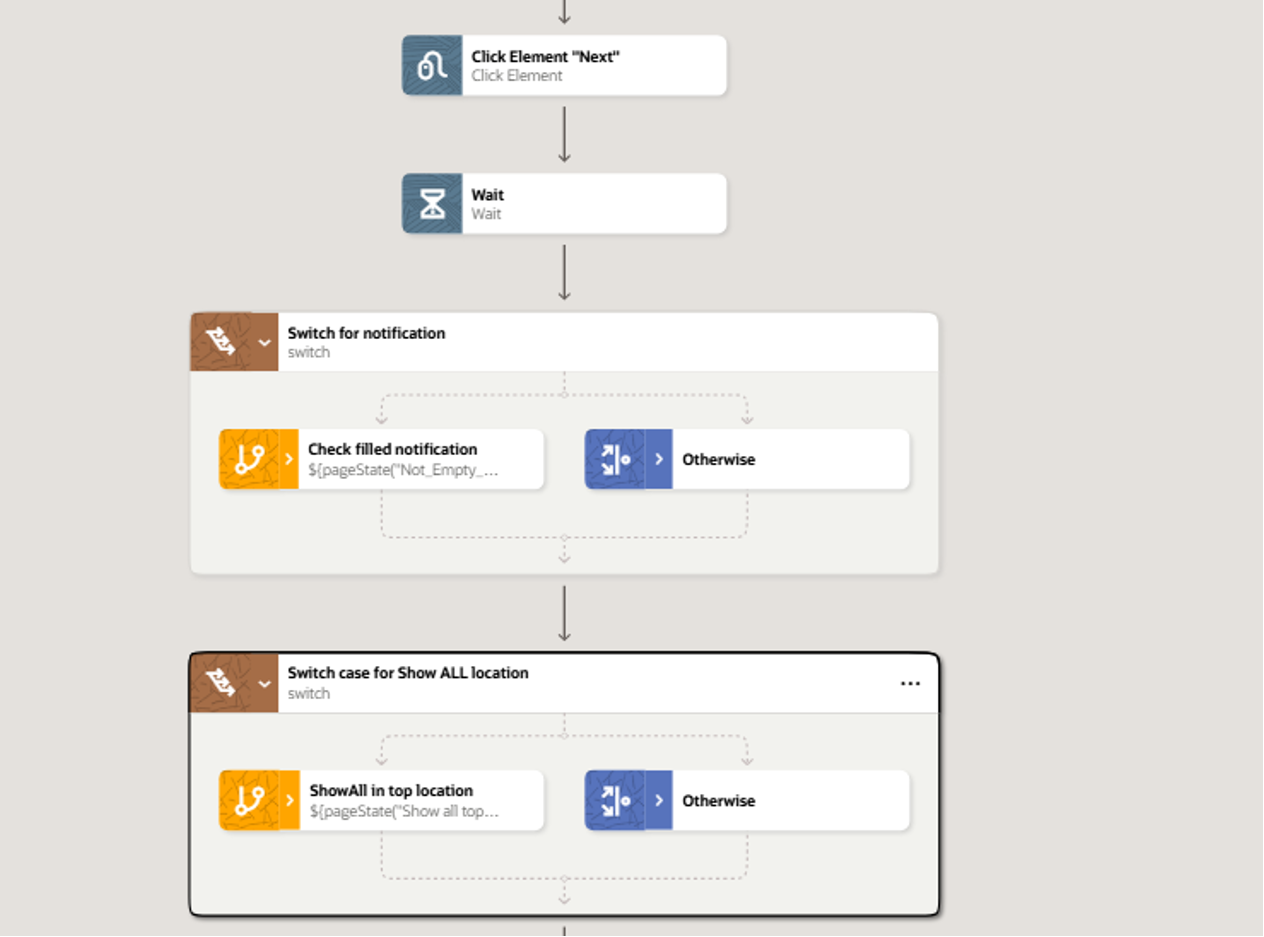 The two switch actions expanded, each with a conditional case and an Otherwise path.
Step 3: Move to the Correct Browser Window
A Wait, a Window (Switch To) action, and another Wait move the robot to the correct browser window once the page has settled.
Step 4: Open the User Menu and the Other Rules Tab
The Click User DropDown action opens the user menu, followed by a Wait Until Element Is Visible so the menu is ready. Two Click Element actions then navigate to the rules area. The second, Click Element Other Rules, targets the Other Rules tab with an XPath locator, covered in the next section.
Step 5: Search for the Employee
After another Wait Until Element Is Visible, the Click Search icon action and the Enter Text ID action look up the employee whose rule is being set.
Step 6: Set the Vacation Rule and Delegate
The robot then fills in the vacation rule and the delegate, and saves it.
Two Patterns That Repeat Throughout
Two patterns repeat all the way down, and they matter more than any single action.
- Every page transition is followed by a Wait or a Wait Until Element Is Visible. This keeps the robot from clicking before Fusion’s page has rendered.
- Every action has a descriptive name, for example Click User DropDown instead of Click Element. This makes a failed run readable in the logs.
How to Configure an XPath Locator
A locator is the field on each action that says which element to act on. For XPath, it is the text xpath: followed by the expression. In this robot, the Click Element Other Rules action uses:
xpath://*[@id=’homePageTemplate:tab_2′]/a
Read it as: find any element (*) whose id is homePageTemplate:tab_2, then take its child link (/a). That link is the Other Rules tab.
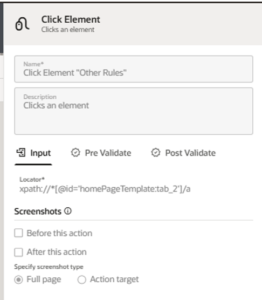
The Click Element panel for Other Rules, with the XPath entered in the Locator field.
Three Ways to Add a Locator
- Use the recorder (fastest): open the robot for editing, select the action’s Locator field, choose Target a page element, then click the element in the application. The robot fills in the XPath for you.
- Copy it from the browser: use this when the recorder picks the wrong element. In the application, right-click the element and choose Inspect. In the Elements tab, right-click the node, then choose Copy and Copy XPath. Paste it into the Locator field after xpath:.
- Write it by hand: use the id attribute you see in DevTools and build //*[@id=’…’] yourself, as above.
Test the Locator Before Running the Robot
In the browser console, evaluate document.getElementById(‘homePageTemplate:tab_2’). If it returns the element, the id is right. Oracle’s troubleshooting guide uses the same check. It also advises removing any extra text that appears after the closing ] in the Locator field.
Choose a Locator That Survives
The locator is where robots break, so it is worth choosing deliberately. These are recommendations from our own experience, not Oracle rules.
- Prefer an id over a long path. //*[@id=’…’] survives layout changes. A copied absolute path such as /html/body/div[3]/… breaks when anything on the page moves.
- Be careful with generated ids. Oracle ADF pages produce ids such as pt1:_UISatr:0:cil1. Some are stable across sessions and some carry a counter. If an id changes between runs, switch to an attribute or text.
- Watch positional ids. tab_2 means the second tab. If an admin reorders or adds tabs, the robot clicks the wrong one. A text-based locator such as //a[normalize-space()=’Other Rules’] is more tolerant, at the cost of breaking if the label is renamed.
Best Practices for a Resilient Robot
A UI robot fails for timing and page-state reasons far more often than for logic reasons, so the design effort goes into defensive steps.
- Wait for elements, not for time. Prefer Wait Until Element Is Visible before a click over a fixed Wait. A fixed delay is either too short on a slow day or wasted on a fast one.
- Branch on optional screens. Some screens appear only sometimes. Without a Switch action, the robot fails whenever the optional screen shows up.
- Use Pre Validate and Post Validate. Every action panel has these tabs. Use them to confirm the page is in the expected state before the click, and that the click had the expected effect.
- Turn on screenshots where it counts. Each action panel offers screenshots before and after the action, as full page or action target. Enable them on risky steps, such as the final save, so a failed run comes with evidence.
- Keep credentials out of the flow. Store the URL and sign-in details in the robot connection, so rotating a password does not mean editing and re-activating the robot.
- Name every action. Click User DropDown in the log tells you where the run failed. Click Element does not.
The cost of all this is a longer canvas, but for an unattended robot, that trade is correct.
Calling the Robot from an Integration
A robot on its own only automates the screen. The value comes from wiring it into an OIC integration, which supplies the data and decides when it runs. Oracle documents this pattern in its guide on designing an integration that calls a robot.
The responsibilities are split as follows:
- Integration: receives the leave event, validates it, and passes inputs such as the employee and the delegate to the robot as input parameters. It also handles the result, any retry, and any notification.
- Robot: takes those inputs, performs only the UI steps, and returns its status.
Keep the robot simple and the integration smart. Business rules in the integration are easy to test and change. The same rules buried in a robot flow are not.
Troubleshooting Common Issues
A handful of issues account for most robot failures.
- Robot suddenly starts failing: check the XPath first. A change in the page HTML is a likely cause.
- Recorder picks the wrong element: inspect the element in the browser, copy its XPath, and paste it into the Locator field after xpath:.
- Locator not found: evaluate the id in the browser console to confirm it exists, and remove any extra text after the closing ] in the Locator field.
- Robot clicks the wrong tab: the id is positional. Switch to a text-based locator.
- Id works in one run but not the next: the generated id carries a counter. Use an attribute or text instead.
- Robot fails when an optional screen appears: add a Switch action with an Otherwise path.
- Robot clicks before the page is ready: replace the fixed Wait with a Wait Until Element Is Visible.
Conclusion
An OIC robot is the right tool when a task exists only on a screen, and HR delegation is a clear example. Three habits decide whether a robot is dependable:
- Treat locators as the most fragile part. Test each XPath in the browser console, prefer ids and text over positions, and re-check them first when a run breaks.
- Wait on state, not time. Visibility waits and switch branches absorb the page’s variability.
- Keep logic out of the robot. The integration owns the rules and retries, and the robot only clicks and types.
Build a robot only after confirming that no API covers the task, and plan for maintenance, because the page it automates will eventually change.
Looking to automate UI-only steps in Oracle Fusion? Contact Conneqtion to learn how our Enterprise Integration Services and Oracle Fusion Cloud expertise can help you build automation that is reliable and easy to maintain.